Before you start
- Sign in as the workspace owner or an Admin. Other roles can view these settings but not change them.
- Have your current business address, phone and website to hand.
How to use InventorysHub workspace settings
-
Open Workspace
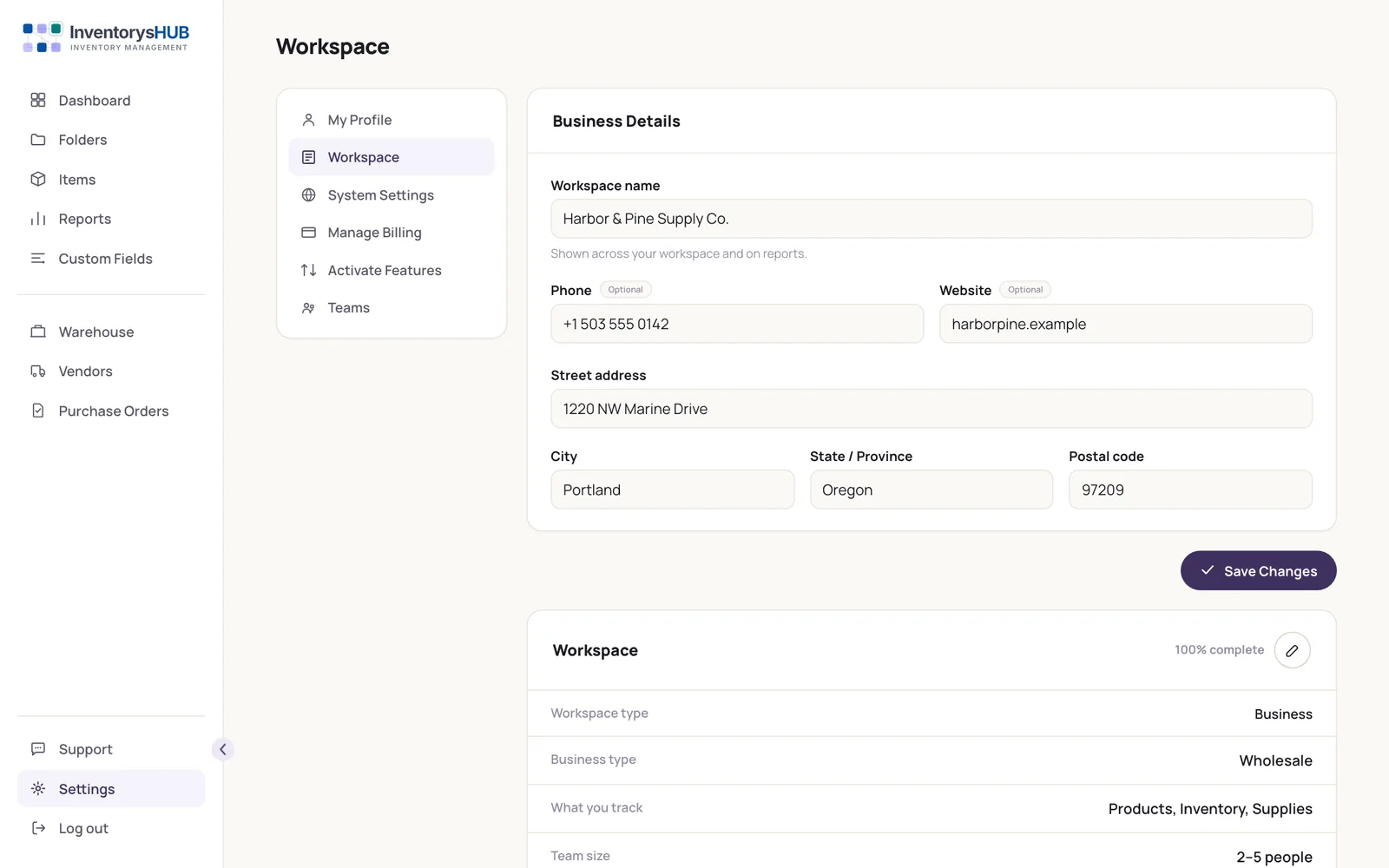
Click Settings in the left menu, then click Workspace. The page has two parts: Business Details and a Workspace summary underneath.
-
Edit your business details
Change the Workspace name, the optional Phone and Website, and your Street address, City, State / Province and Postal code. The workspace name is what your team sees in the app and in invite emails.
-
Save your changes
Click Save Changes. The new details apply straight away for everyone in the workspace.
Use your trading name as the workspace name, so invited teammates recognise the email when it arrives.
-
Finish skipped setup steps
The Workspace summary shows how complete your setup is as a percentage, along with your workspace type, business type, what you track, team size, region and default currency. Click the edit button to open Complete your workspace, answer the questions you skipped, and click Continue until you see All set!
What each workspace detail is used for
| Detail | Where it shows up |
|---|---|
| Workspace name | App header, invites and team emails |
| Address, phone, website | Your business record in the app |
| Business type and what you track | Helps us tailor defaults for your work |
| Team size | Helps us suggest the right plan |
| Region and currency | Money values across items and reports |
Keep your workspace details current
Check these settings whenever your business changes, for example when you move to a new address, change your phone number or rename the company. Up-to-date details help our support team find your workspace quickly, and they make sure new teammates see the right business name when they accept an invite. A quick review every few months is usually enough.
Quick answers
Who can change InventorysHub workspace settings?
The workspace owner and Admins can make changes. Members can see the page but cannot save edits.
Can I switch from a personal to a business workspace?
Yes. Open the edit button on the Workspace summary and change the workspace type.
Does renaming the workspace affect my items?
No. Items, folders and history stay exactly the same. Only the name changes.