Before you start
- Reports and exports are part of the Ultimate plan.
- Decide whether you need every item or only one folder or warehouse.
How to export a report from InventorysHub
-
Open the report
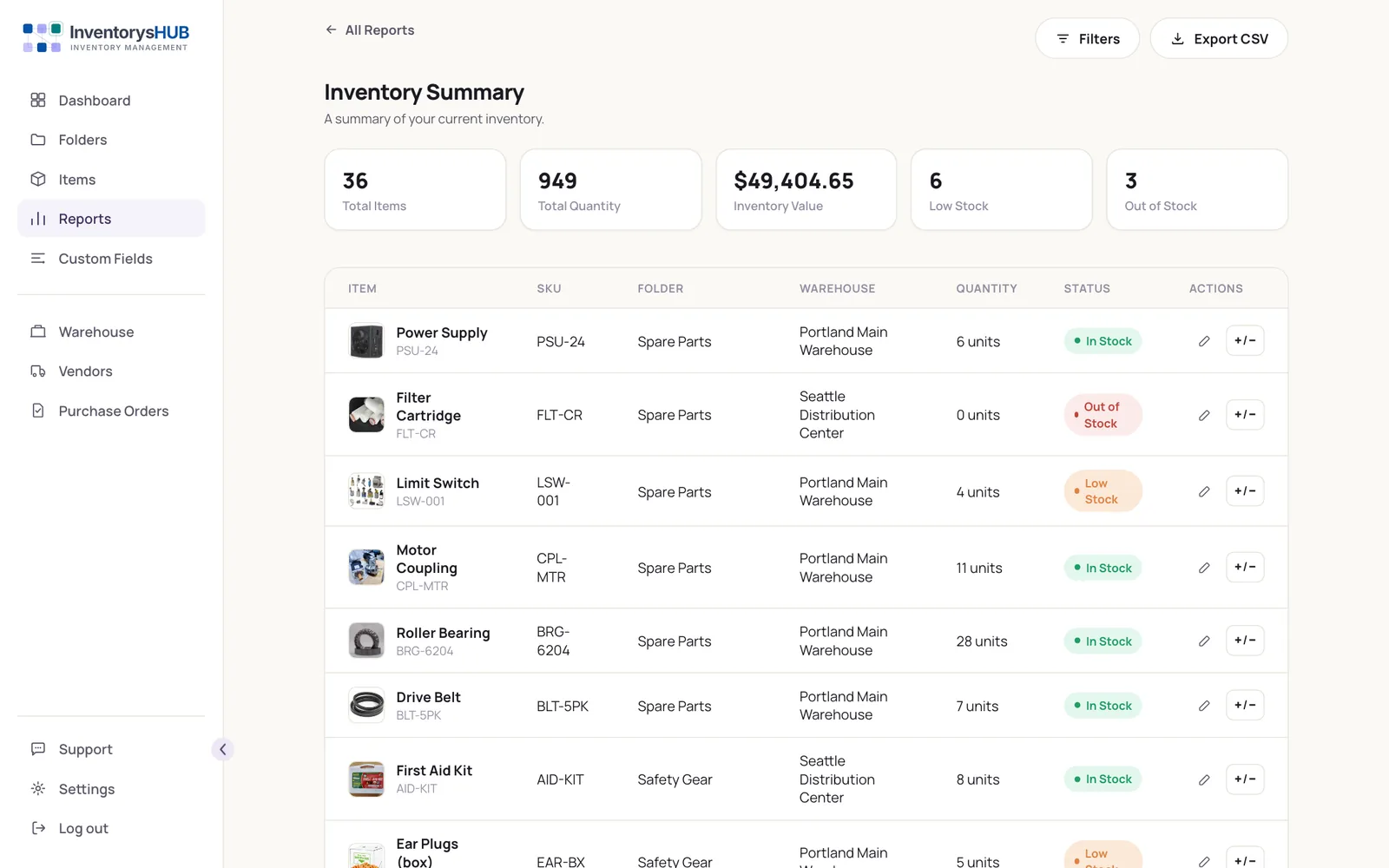
Click Reports in the left menu and click View Report on the report you want, such as Inventory Summary or Inventory Activity.
-
Apply filters if you need them
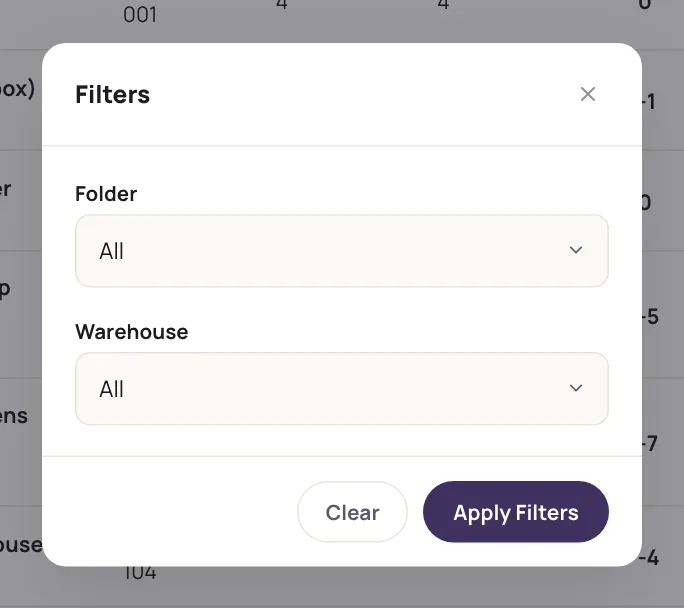
Click Filters, choose a Folder or Warehouse, and click Apply Filters. The export uses the same filters, so the file matches what you see on screen.
-
Click Export CSV
Click Export CSV at the top right of the report. Your browser downloads the report as a CSV file, which usually lands in your Downloads folder.
Add the date to the file name when you save it, such as “inventory-summary-2026-11-30”, so monthly exports are easy to find later.
-
Open the file
Double-click the file to open it in Excel, Numbers or another spreadsheet app. In Google Sheets, choose File, then Import, and upload the file. Each row is one item or one stock change, with a column for every field in the report.
Which report should I export?
- Inventory Summary: a month-end snapshot of quantities and value for your books.
- Inventory Activity: a full record of stock changes for an audit.
- Low Stock: a shopping list to share with a buyer or supplier.
- Items by Folder or Items by Warehouse: totals for each group or site, ready for a chart.
Tips for clean spreadsheets
CSV files hold plain data with no formatting, which makes them easy for any tool to read. If numbers look like text, select the column and set it to Number. Do not edit the export and import it back as new items, because that would create duplicates. To change items in bulk, use the app’s own tools instead.
Why export a report from InventorysHub instead of keeping a spreadsheet
Your live numbers stay in the app, where the whole team updates them as they work. An export is just a snapshot for a moment in time. This gives you the flexibility of a spreadsheet without its errors, as our page on InventorysHub vs Excel spreadsheets shows.
Quick answers
Can I export a report from InventorysHub as a PDF?
Reports export as CSV. To make a PDF, open the CSV in a spreadsheet app and save or print it as a PDF.
Can I export my item list without the Ultimate plan?
CSV exports are part of the reports on the Ultimate plan. You can still view items on screen on every plan.
Why does my export show strange characters?
Open the file with UTF-8 encoding. In Excel, use Data, then From Text/CSV, and choose UTF-8.