Before you start
- Sign in to your workspace. Everyone on the team can arrange folders.
- If you plan to move a folder inside another one, make sure the destination folder already exists.
How to move a folder in InventorysHub
-
Open the folder menu
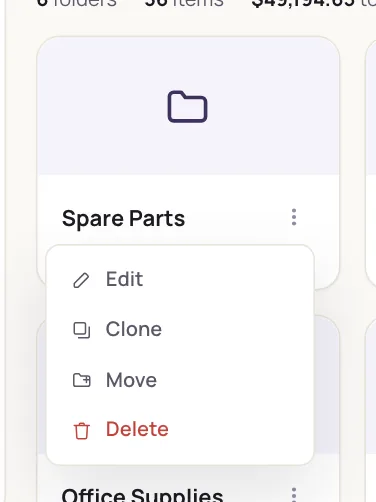
Click Folders in the left menu. On the folder card, click the ⋮ button. The menu offers Edit, Clone, Move and Delete.
-
Choose Move
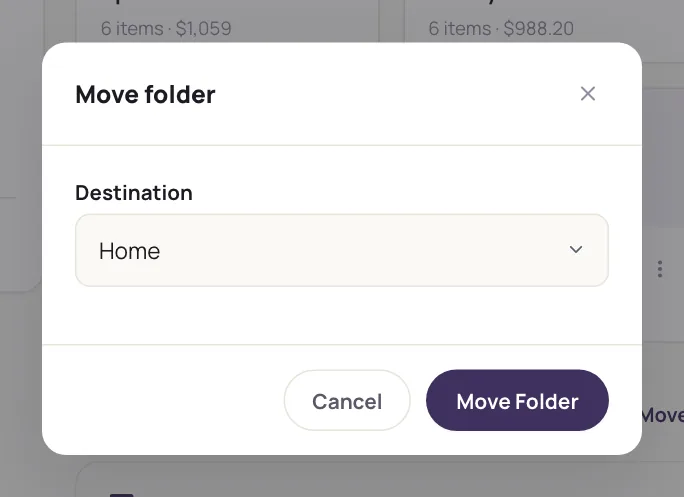
Click Move. In the Move folder window, pick a Destination. Choose Home to make it a top-level folder, or choose another folder to place it inside.
-
Confirm the move
Click Move Folder. The folder moves with all of its subfolders and items, and every item keeps its stock and history exactly as before.
You cannot move a folder into one of its own subfolders, because that would create a loop.
Rename a folder or change its icon
Choose Edit from the folder menu, type a new name or pick a new icon, and save. The change shows everywhere straight away, including in item forms and reports.
Clone a folder structure
Choose Clone to copy the folder and every subfolder inside it. The copy gets “Copy” after its name and sits next to the original. Clone copies the folders only, not the items, which makes it ideal for setting up the same layout for a new site or season.
Delete a folder and restore it
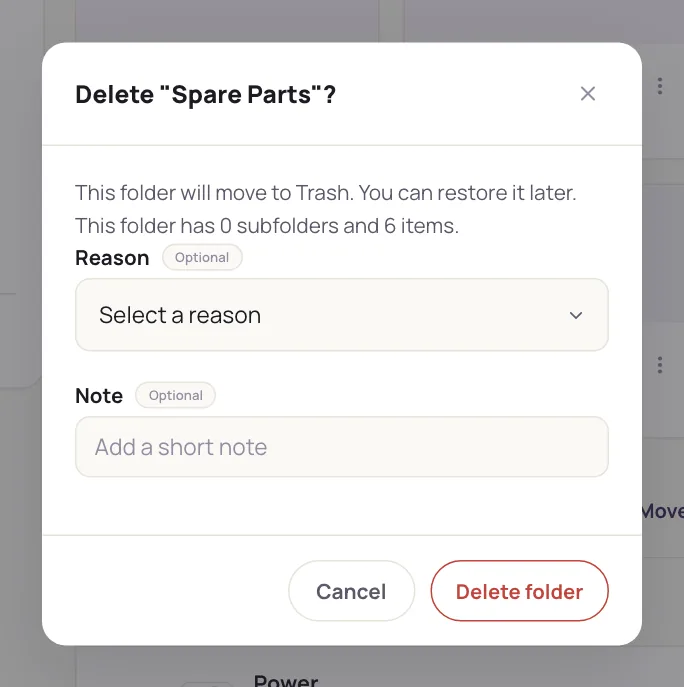
Choose Delete. The window tells you how many subfolders and items the folder holds. Pick a Reason, such as Created by mistake, Duplicate folder, No longer needed or Restructuring folders, and add a Note if you like. Click Delete folder, and it moves to the folder Trash.
The items inside are not deleted. To undo, open the folder Trash and click Restore. If you choose Delete permanently, the folder is removed for good and its items move to Home, so no stock is ever lost.
Folders across many locations
If you run more than one site, combine folders with warehouses: folders say what an item is, and warehouses say where it is kept. Read about our multi-location inventory management to see how they work together.
Quick answers
Does it change stock when I move a folder in InventorysHub?
No. Moving a folder only changes where it sits. Every item keeps its quantity, value and history.
Why can I not clone a folder?
Cloning creates new folders, so it counts toward your plan’s folder limit. On the free plan, you may need to upgrade first.
Where is the folder Trash?
It is on the Folders page, separate from the items Trash. Deleted folders wait there until you restore them or delete them permanently.