Before you start
- Barcodes are part of the Advanced and Ultimate plans.
- Turn on Barcode Scanning in Settings, under Activate Features.
- Have the barcode number from the product box, or decide to use your own codes.
How to add a barcode in InventorysHub
-
Open the item
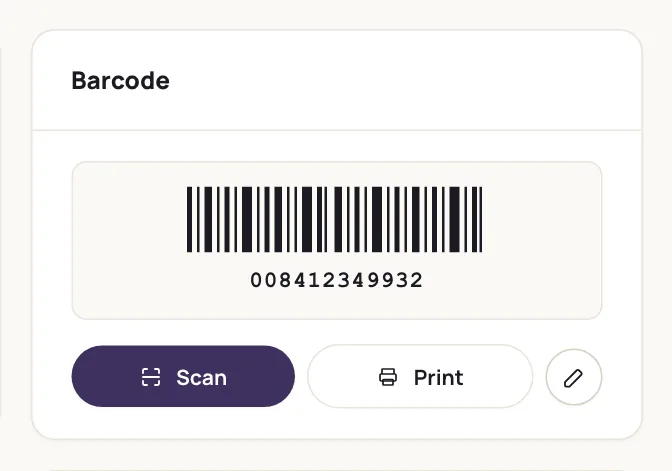
Go to Items and click the item. The Barcode card on the item page shows the current barcode. If you have not set one, the card shows the item’s SKU as the barcode, so every item with a SKU can be labelled straight away.
-
Click the pencil to edit the barcode
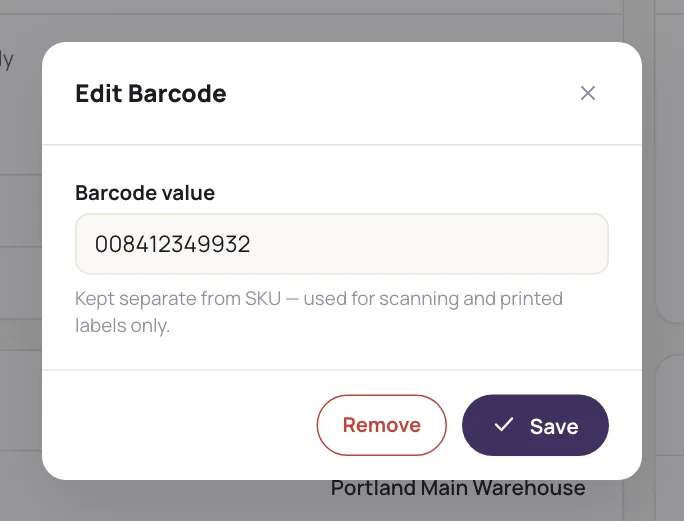
Click the pencil button on the Barcode card. In Edit Barcode, type or paste the number into Barcode value. This value is kept separate from the SKU and is used only for scanning and printed labels.
-
Save the barcode
Click Save. The card updates at once. To go back to using the SKU, open the same window and click Remove.
Copy the number printed under the bars on the maker’s box. Using the maker’s code means the label and the box always match.
-
Print a label
Click Print on the Barcode card. Your browser’s print window opens with a label that shows the item name and its barcode. Choose your label printer or a normal printer and print.
Add barcodes to many items at once
If you are importing a list, add a barcode column to your CSV file and map it during import. The sample file includes this column when barcodes are turned on. See how to import items.
Find items by barcode
Type or paste a barcode into the search box at the top of any page, and the matching item appears just like a name match. Most USB and Bluetooth scanners act like a keyboard, so you can click the search box and scan the label to type the number for you. The Scan button on the Barcode card is for camera scanning, which is not available yet, so use the search box for now.
Barcode tips
- Keep one barcode per item, and never reuse a code for a different item.
- For your own codes, a short SKU-style value is easier to read if a label gets damaged.
- Stick labels where they are easy to see without moving the item.
New to codes? Our blog explains what is a SKU, and our barcode inventory software page shows the full feature.
Quick answers
Why can I not add a barcode in InventorysHub?
Check that your plan is Advanced or Ultimate and that Barcode Scanning is turned on under Activate Features in Settings.
Is the barcode the same as the SKU?
Only until you set one. Once you save a barcode value, it is stored separately and the SKU stays unchanged.
Can I scan with my phone camera?
Camera scanning is coming but is not available yet. A handheld scanner with the search box works today.