Before you start
- Have a purchase order with the status Draft, Ordered or Partially Received. See how to make a purchase order.
- Check the delivery against the order before you receive it, so the counts in the app match the boxes on the floor.
How to receive a purchase order in InventorysHub
-
Open the order
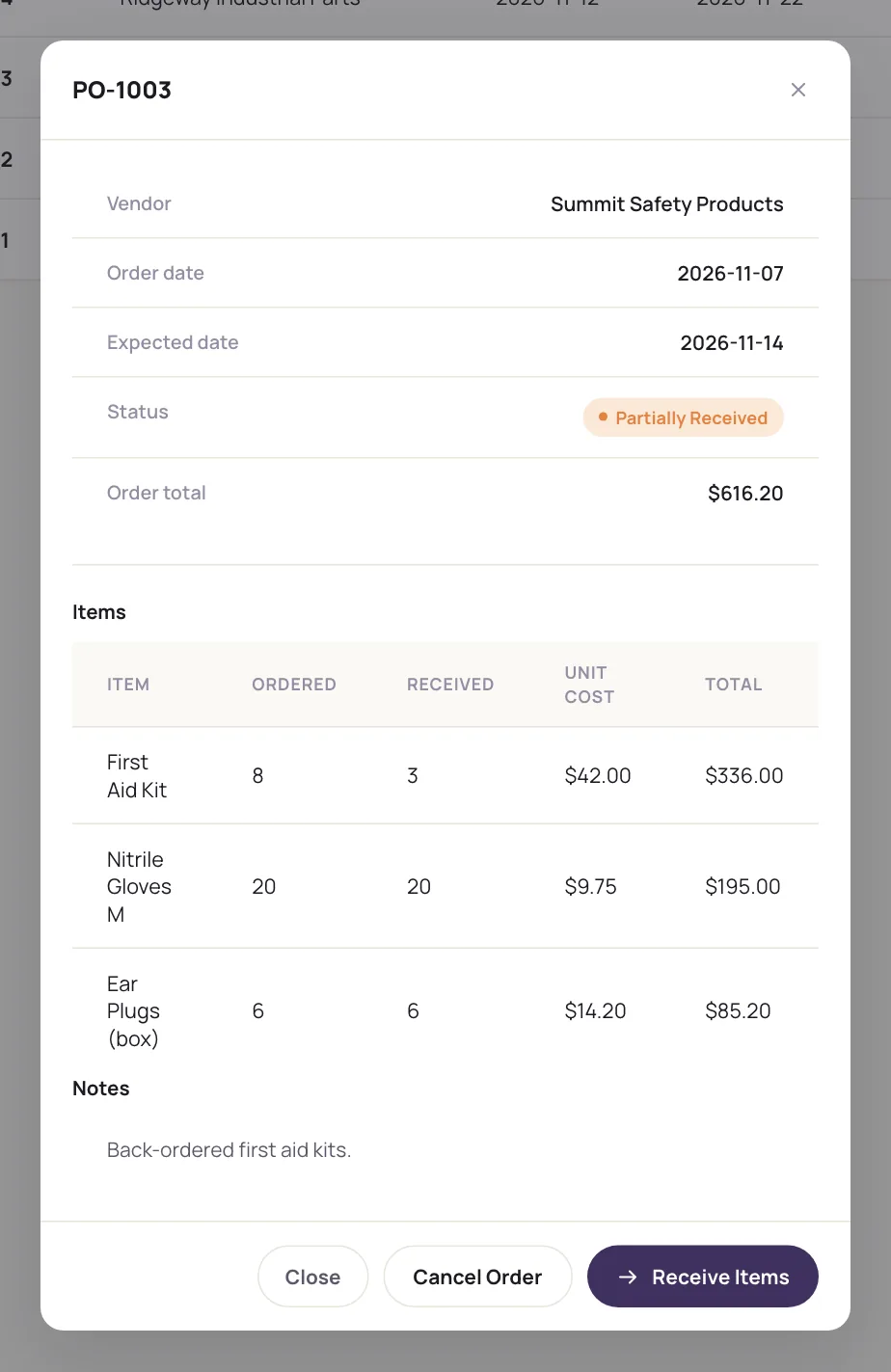
Click Purchase Orders in the left menu and click the order’s PO number. A window opens with the vendor, dates, status, order total and every line, showing how many units were Ordered and how many have been Received so far.
-
Click Receive Items
Click Receive Items at the bottom of the window. The app adds every unit still outstanding on each line to that item’s stock, and the order’s status changes to Received.
If only part of a delivery has arrived, wait until the rest comes before you receive the order, because receiving adds all outstanding units at once.
-
Check the new stock
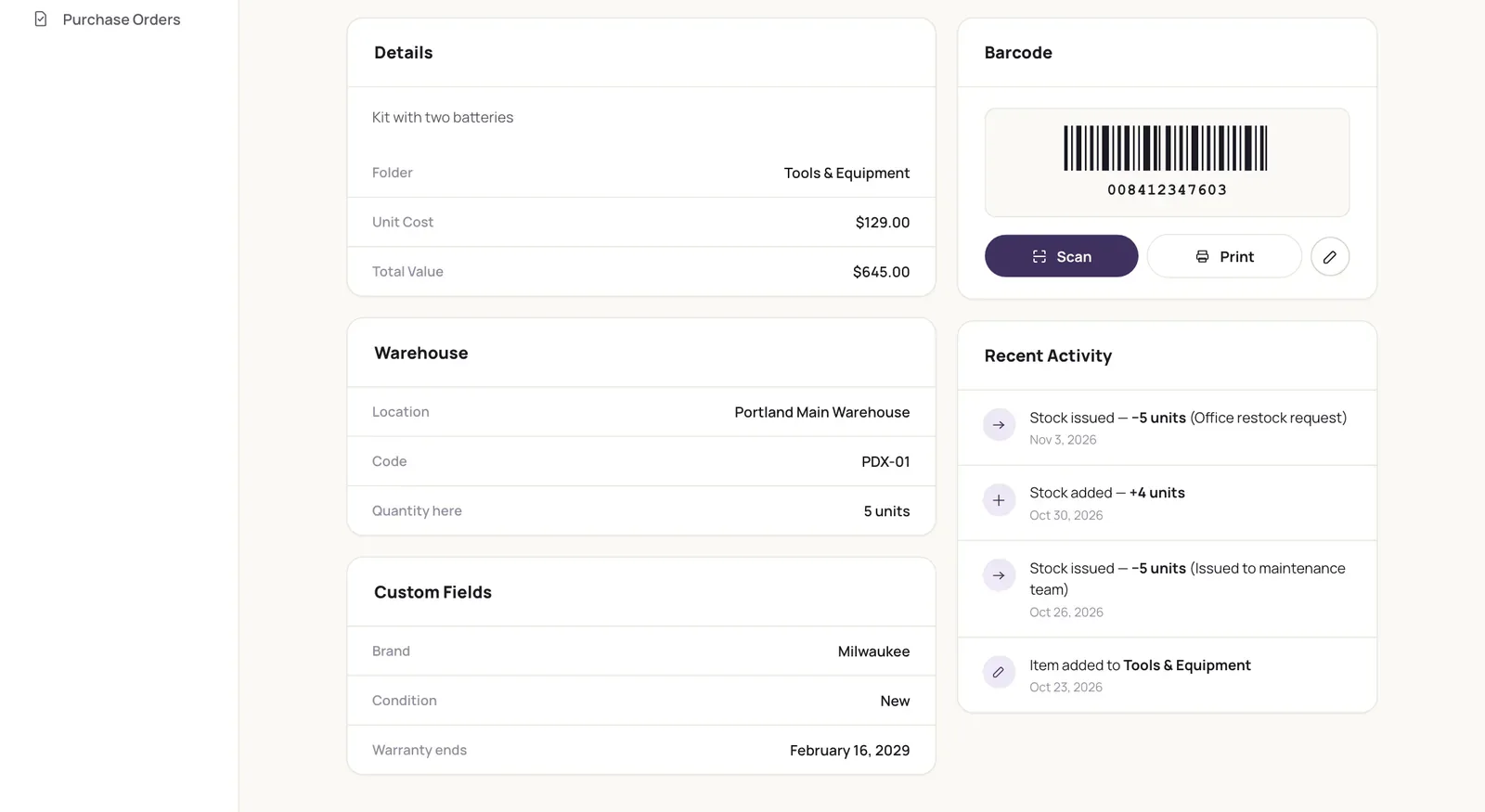
Open any item from the order. Its quantity has gone up, and its Recent Activity shows a new line with the PO number as the reason, so you can always trace stock back to the delivery it came from.
Cancel an order
If you no longer need the goods, open the order and click Cancel Order. The status changes to Cancelled, and no stock is added. Received and cancelled orders are final, so the Receive Items and Cancel Order buttons no longer show on them.
When a delivery is short or damaged
- Some units are missing: hold off on receiving until the rest arrives, or receive the order and then issue the missing units with a clear reason.
- Some units are damaged: receive the order, then issue the broken units with the reason Damaged.
- The count is simply wrong: receive the order, then use Adjust Stock after counting.
Each of these leaves a clear trail in the stock log.
Why it pays to receive a purchase order in InventorysHub
Receiving through the order, rather than adding stock by hand, links every delivery to what you paid and who supplied it. Over time this shows which suppliers deliver on time and in full. Learn how the full buying cycle works in our purchase order process guide, or see the feature in our purchase order management software.
Quick answers
Can I receive a purchase order in InventorysHub one line at a time?
Receive Items adds all outstanding units in one step. For short deliveries, follow the tips above to keep counts correct.
Can I undo a received order?
No, but you can issue or adjust the stock with a clear reason if units were added by mistake.
Does receiving update the item’s unit cost?
The order keeps the costs you entered. Edit the item if you want its unit cost to match the latest price.