Before you start
- Sign in as the workspace owner. Only the owner can create or delete custom roles.
- Think about what each job really needs, such as counting stock or running reports.
How InventorysHub user roles work
-
Open the Roles tab
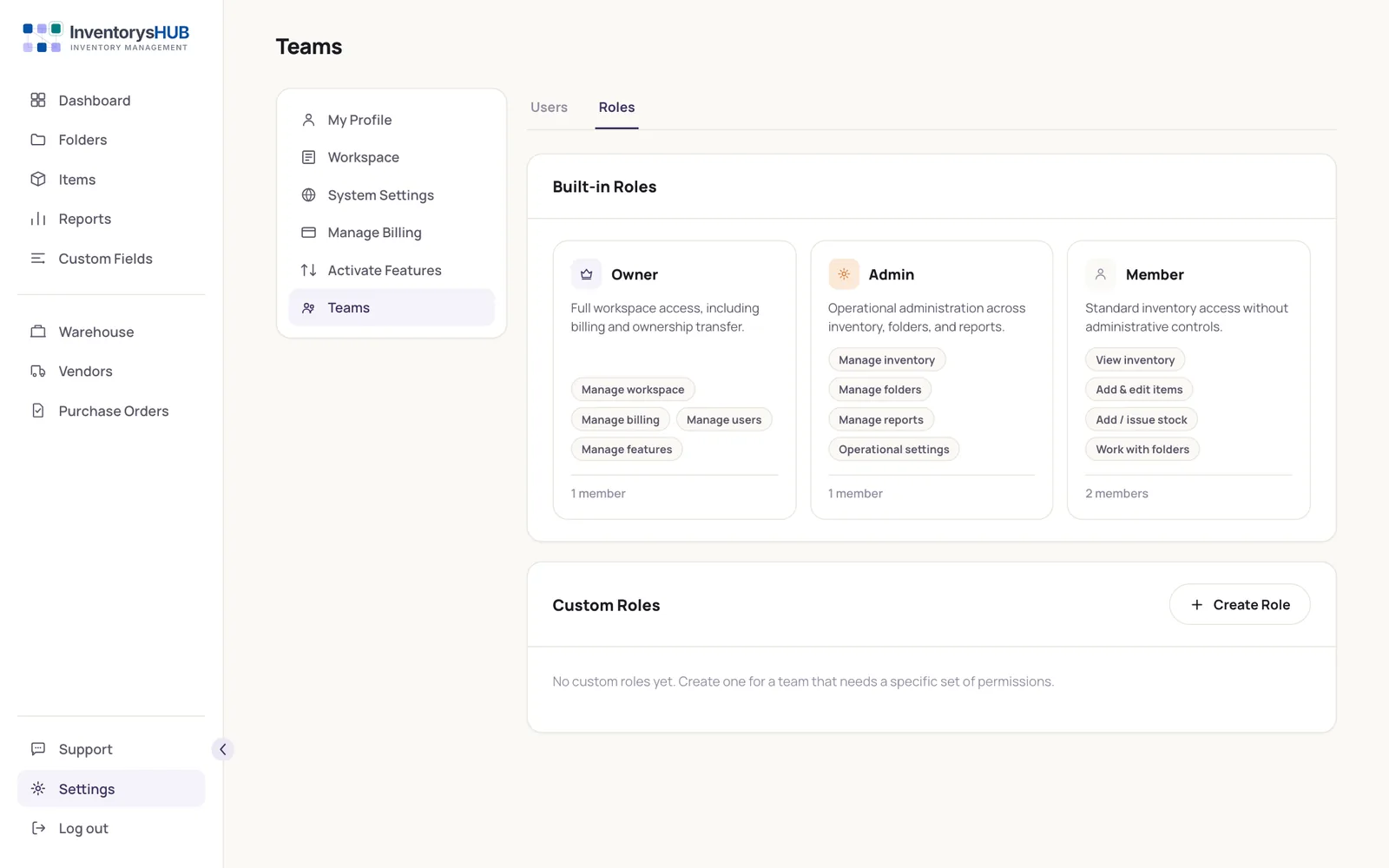
Click Settings, then Teams, then the Roles tab. The top section shows the three Built-in Roles, each with a short list of what it allows. Your own roles appear under Custom Roles.
-
Read the built-in roles
- Owner can do everything, including billing. The person who created the workspace is the owner.
- Admin handles day-to-day running: inventory, folders, reports, workspace and system settings, and the team list.
- Member has standard access without admin controls: viewing stock, adding and editing items, adding and issuing stock, and working with folders.
-
Create a custom role
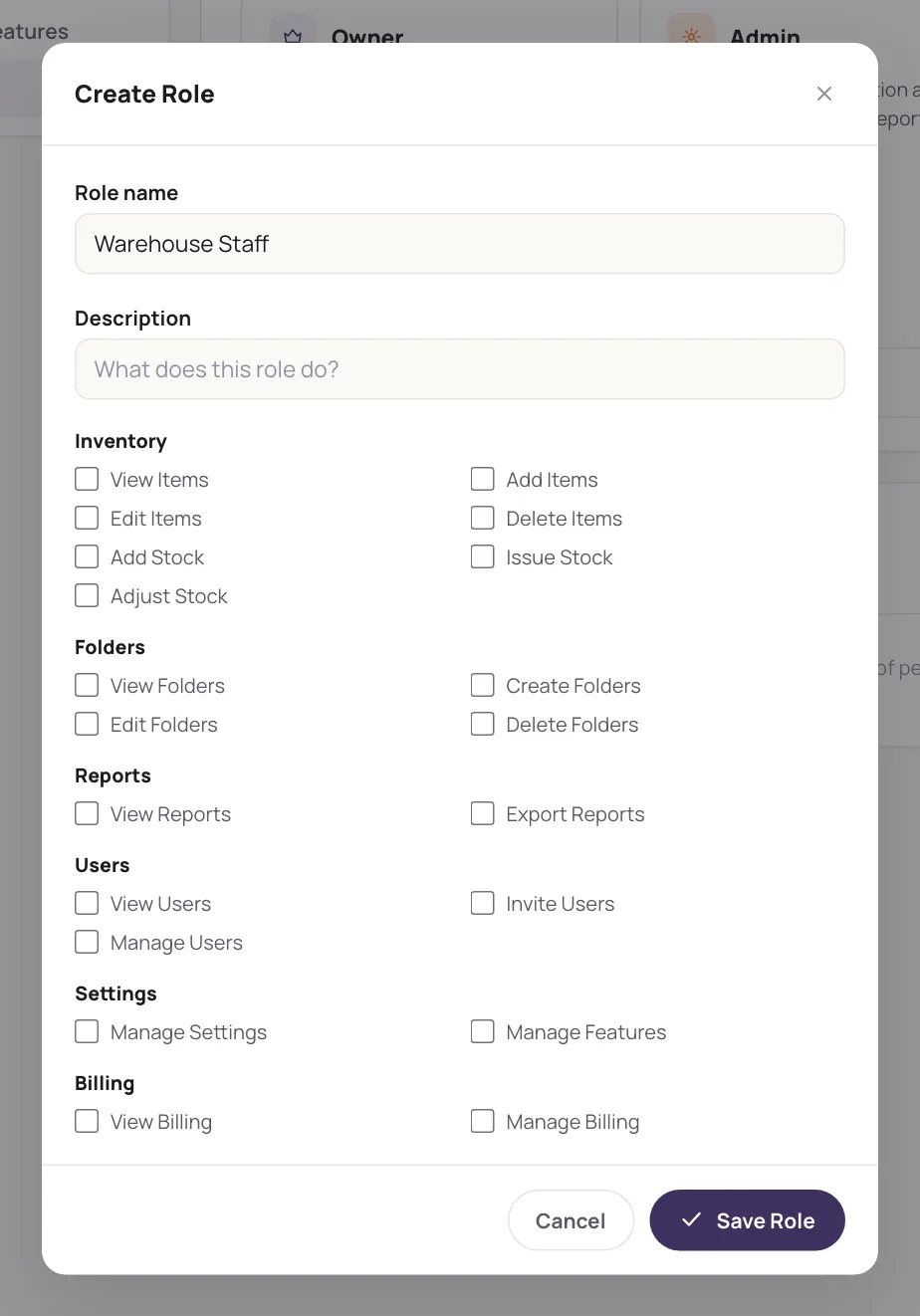
Click Create Role. Type a Role name, such as “Warehouse Staff”, and a short Description. Tick the permissions the role should have, then click Save Role.
-
Give the role to someone
Go back to the Users tab and change the person’s role, or pick the new role when you invite users.
Name roles after jobs, not people. “Receiving Clerk” still makes sense when the person changes.
The permissions you can choose
| Group | Permissions |
|---|---|
| Inventory | View, Add, Edit and Delete Items; Add, Issue and Adjust Stock |
| Folders | View, Create, Edit and Delete Folders |
| Reports | View Reports, Export Reports |
| Users | View Users, Invite Users, Manage Users |
| Settings | Manage Settings, Manage Features |
| Billing | View Billing, Manage Billing |
Every custom role needs at least one permission. Start with the smallest set that lets a person do their job, and add more later if they ask for it. It is much easier to give access than to undo a mistake made with too much access.
Delete a custom role
Use the delete option on the role and confirm with Yes, Delete Role. Anyone who had that role is moved to Member, so nobody is locked out. This cannot be undone.
Choosing InventorysHub user roles for your team
Keep it simple: one owner, one or two Admins, and everyone else as Members or a focused custom role. Fewer people with wide access means fewer accidental changes. Clear roles, together with a full history of changes, are part of good stock control, as our inventory control system page explains.
Quick answers
Can I change the owner of a workspace?
Ownership transfer is not in Settings yet. Contact support and we will help.
How many custom InventorysHub user roles can I make?
There is no fixed limit, but a few clear roles are much easier to manage than many similar ones.
Who can manage billing?
Only the workspace owner can change plans, update the card or cancel.