Before you start
- Make sure some stock changes have happened, such as items added, issued or adjusted.
- The full activity report needs the Ultimate plan, while the item and dashboard views work on every plan.
How to read the InventorysHub stock log
-
See the log for one item
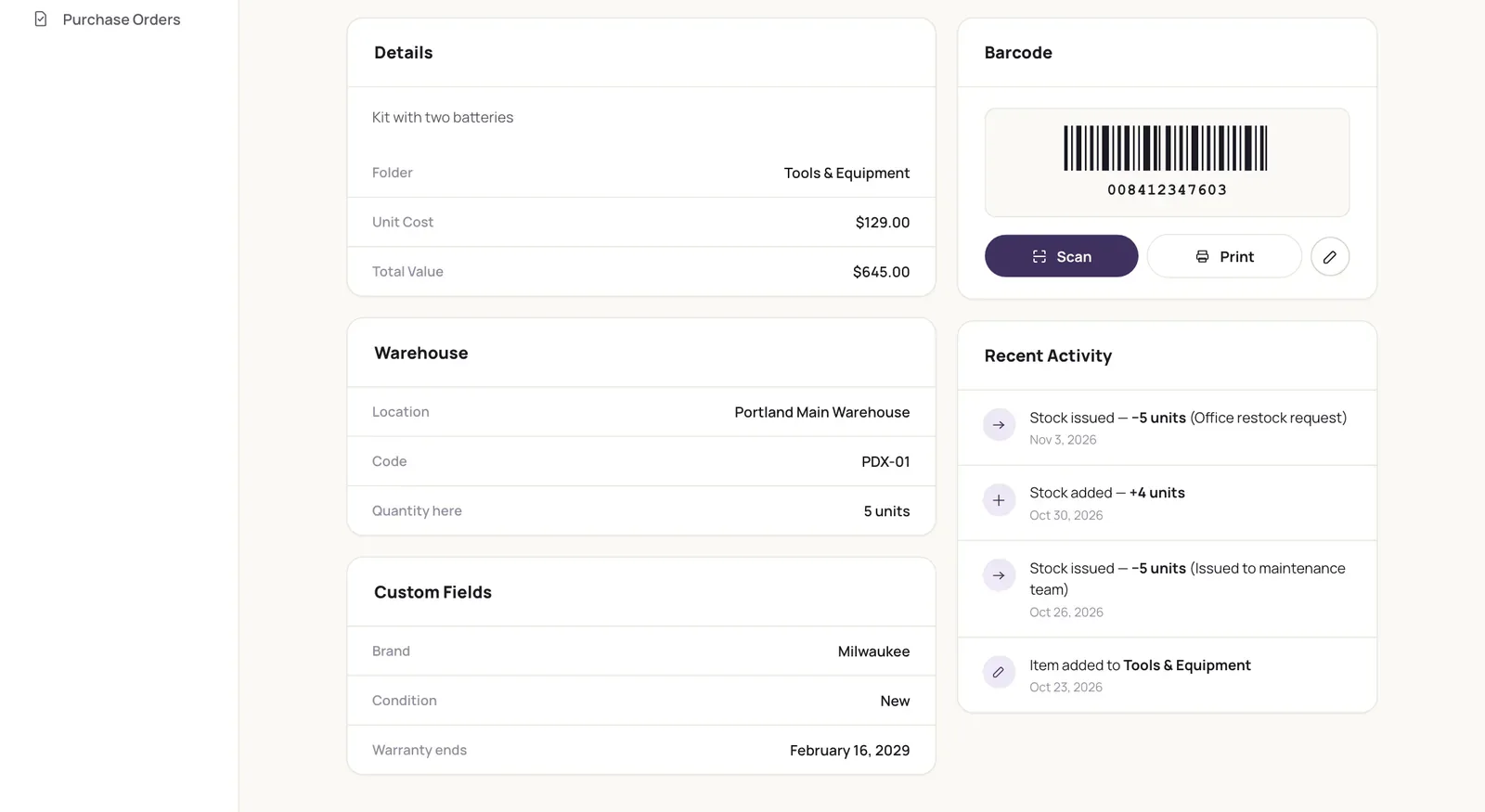
Open any item and scroll to Recent Activity on the right. Each line shows the type of change, the number of units and the reason in brackets, such as “Stock issued — 2 units (Office restock request)”, with the date underneath.
-
See the latest changes across the account
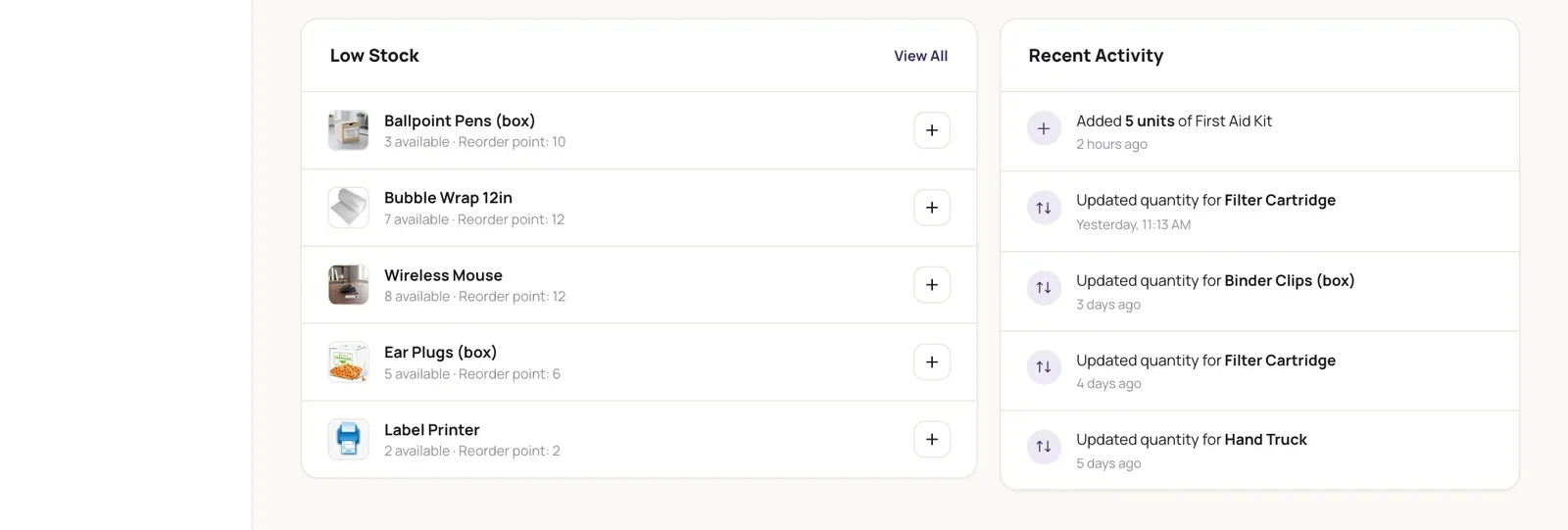
On the dashboard, the Recent Activity panel lists the newest stock changes for all items together. It is a quick way to see what your team has done today.
-
Open the full Inventory Activity report
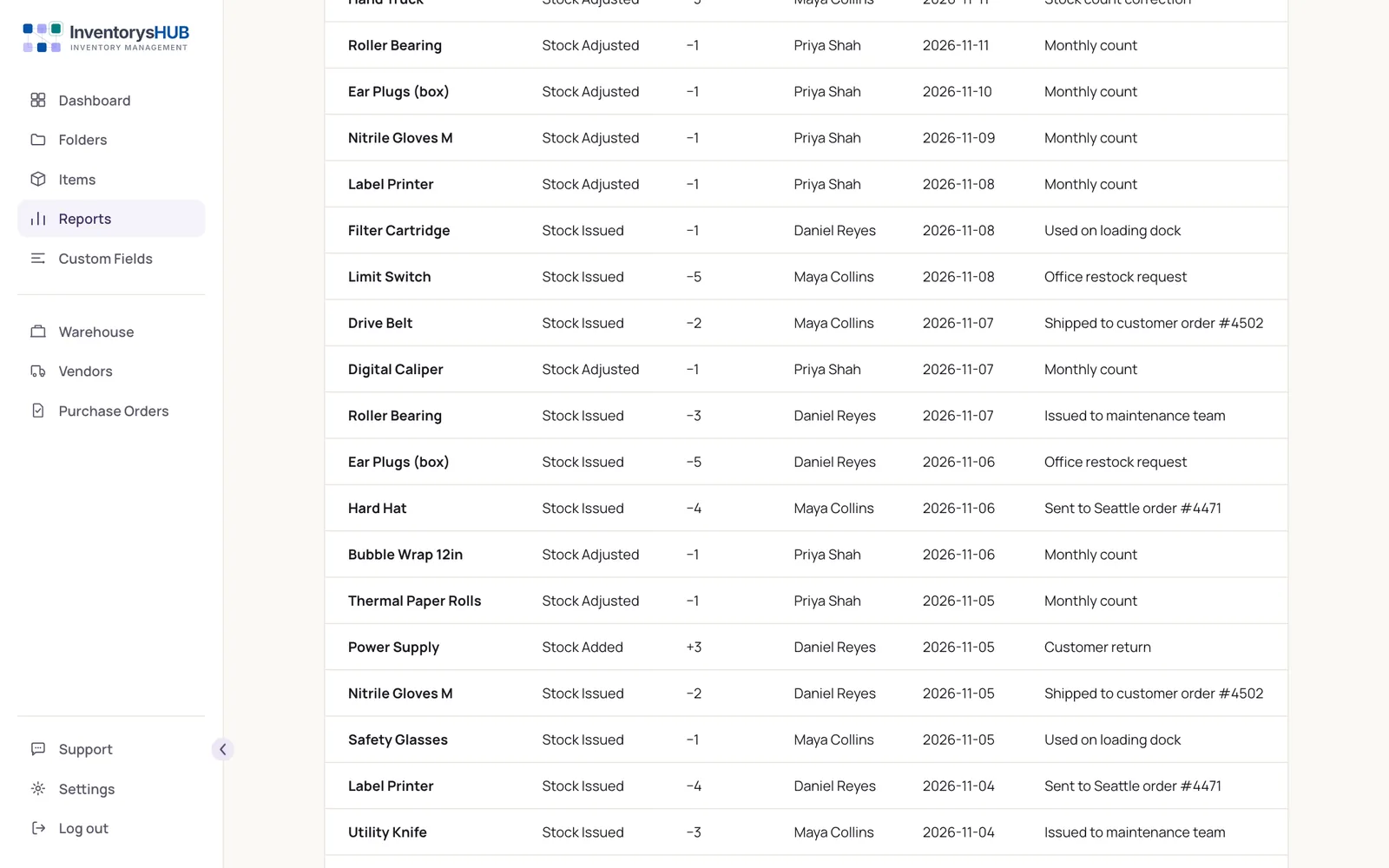
Click Reports in the left menu, find Inventory Activity and click View Report. The report lists every addition, issue and adjustment, with the item, the change, the user who made it, the date and the reason. Use Filters to narrow it by folder or warehouse.
What each type of change means
- Stock created: the starting quantity when the item was first added or imported.
- Stock added: units came in, for example from a delivery or a return.
- Stock issued: units went out, for example from a sale or internal use.
- Stock adjusted: the count was set to a new number after checking the shelf.
Receiving a purchase order also adds a line, with the order number as the reason, so you can tie each delivery back to its order.
Use the stock log to solve problems
When a number looks wrong, the InventorysHub stock log usually explains it within a minute. Look for a large issue with an odd reason, a missing delivery, or an adjustment that was much bigger than expected. Because each line names the user, you know who to ask. Good reasons make this much easier, so encourage your team to pick the reason that truly fits.
A full, trusted history is a key part of any inventory control system, and it is what makes our inventory tracking software dependable.
Keep a copy outside the app
Need the history for an audit or a spreadsheet? Open the Inventory Activity report and click Export CSV. Our guide on how to export a report shows the steps.
Quick answers
Can someone edit or delete the InventorysHub stock log?
No. Log lines cannot be edited. To fix a mistake, make a new change with a clear reason, and both lines stay in the history.
How far back does the log go?
The log keeps every change since the item was created, so you can always trace a count back to its start.
Why do I not see Reports in the menu?
Reports are part of the Ultimate plan. On other plans, use the item page and dashboard views of the log.