Before you start
- Know roughly how many units of the item you use each day or week.
- Know how long your supplier usually takes to deliver once you order.
How to set a reorder point in InventorysHub
-
Open the item form
For a new item, click Items and then Add Item. For an existing item, open it, click the ⋮ menu and choose Edit Item.
-
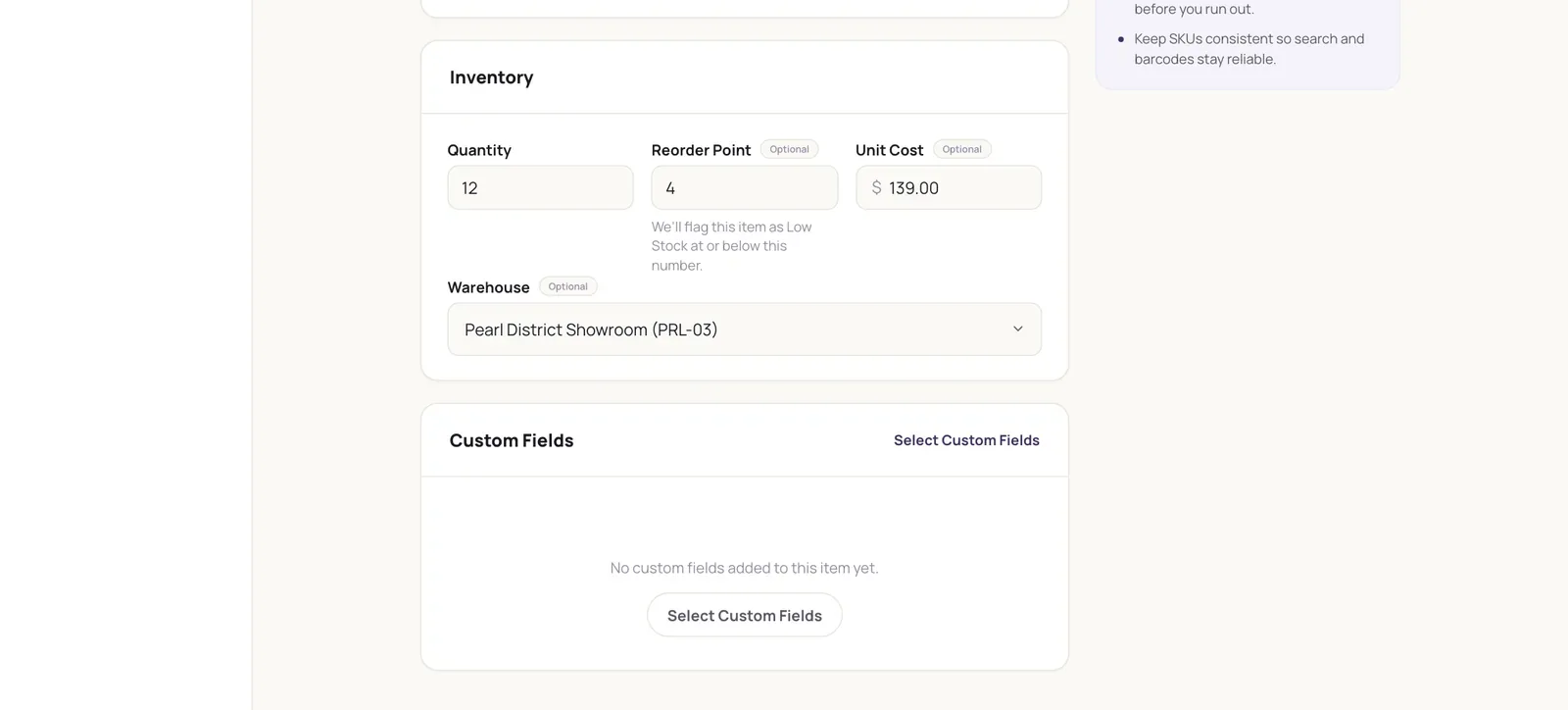
Type the reorder point
In the Inventory section, type a number in Reorder Point. The hint under the box explains the rule: the item is flagged as Low Stock at or below this number.
-
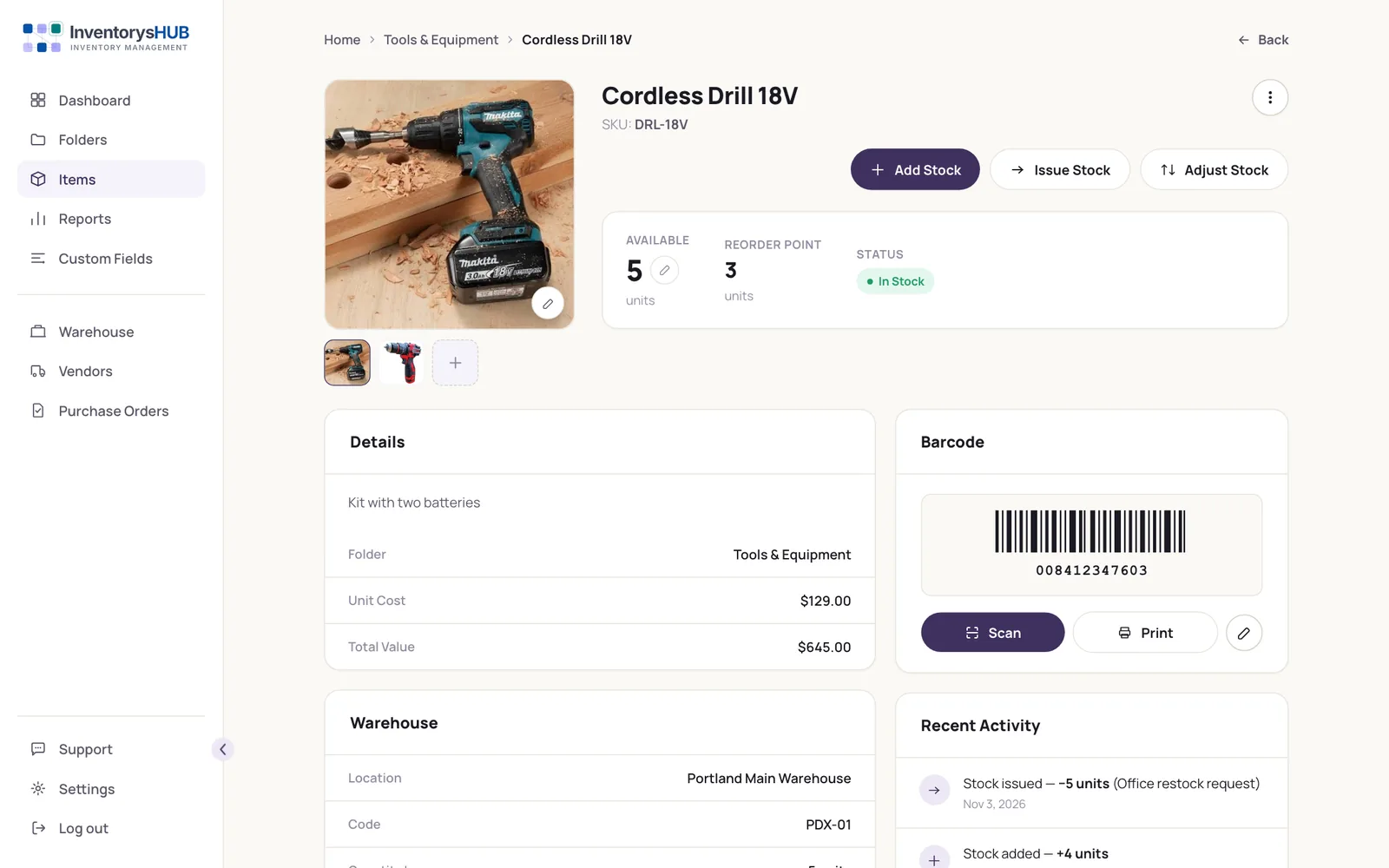
Save the item
Click Save Item. The item page now shows the Reorder Point next to the available stock, along with its current status.
How to pick a good number
A simple rule works for most items: take how many you use per day, multiply it by the number of days delivery takes, and add a little extra as a safety cushion.
Example: you use 2 drills a week, and the supplier takes 2 weeks. That is 4 drills used while you wait. Add 2 more as a cushion, and your reorder point is 6.
Want exact numbers? Our free reorder point calculator does the maths for you, and the safety stock calculator helps you size the cushion.
What happens when stock reaches the reorder point
- The item’s status turns to Low Stock everywhere in the app.
- Your team gets low stock notifications in the bell.
- The item appears in the Low Stock filter, the dashboard panel and the Low Stock report.
That is your signal to make a purchase order.
Review your reorder points
Demand changes with the seasons, so check your numbers every few months. Raise the reorder point if you keep running short, and lower it if stock sits on the shelf for weeks. To set a reorder point in InventorysHub for many items at once, add a reorder_point column to a CSV file and import your items.
Quick answers
What if I do not set a reorder point in InventorysHub?
The item will not show as Low Stock. You will only see it flagged once it is Out of Stock.
Can I set the reorder point to zero?
Yes, but then you only hear about the item when it has run out, which leaves no time to reorder.
Is the reorder point the same for every warehouse?
Each item has one reorder point. If you hold the same product in two places, use one item per location so each has its own number.