Before you start
- Sign in to your workspace. Everyone on the team can work with items.
- If you plan to move items, create the destination folder first.
How to use InventorysHub bulk actions
-
Select the items
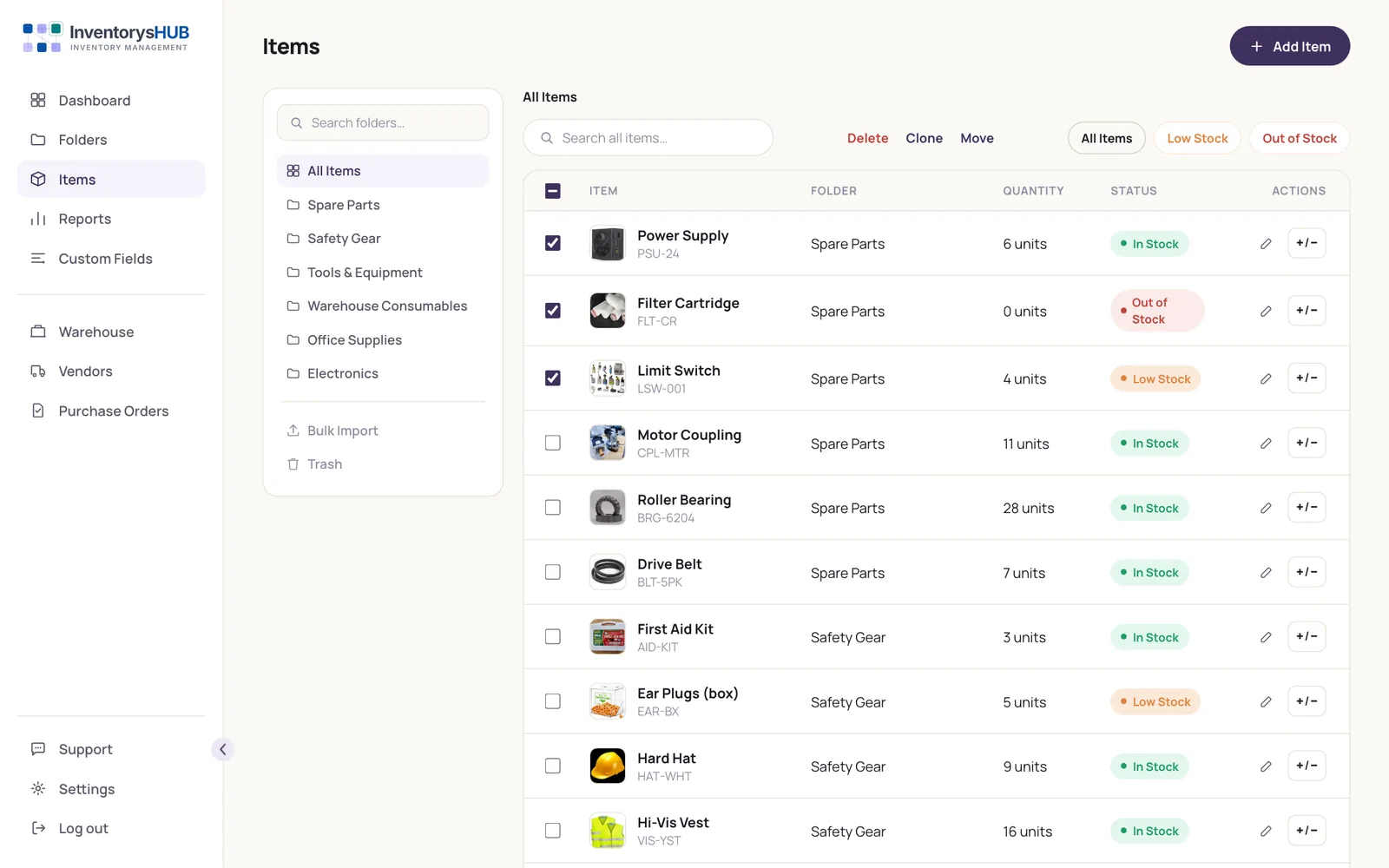
Go to Items or open a folder. Tick the box at the start of each row you want. To select every item on the page, tick the box in the table heading. A bar appears showing how many items are selected, along with the bulk buttons.
-
Move items to a folder
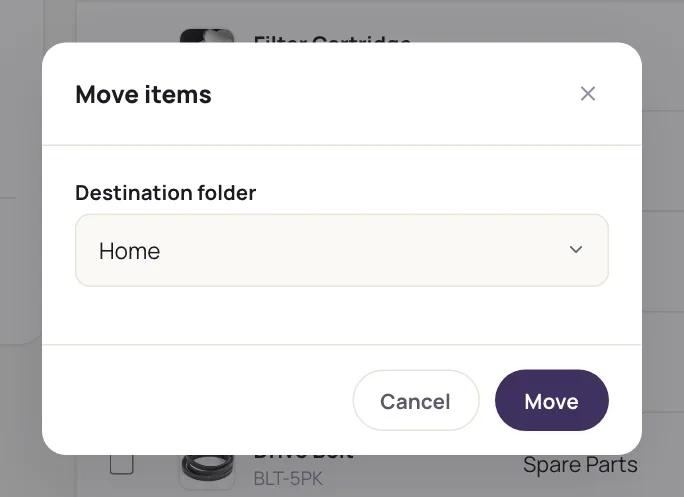
Click Move. In the Move items window, choose a Destination folder, or Home for the top level, and click Move. The items keep their stock and history; only the folder changes.
-
Clone items
Click Clone to make a copy of every selected item. Each copy gets “(Copy)” after its name and “-COPY” after its SKU, so you can tell them apart. This is handy when you stock a new range that is close to an old one.
-
Delete items
Click Delete and confirm. The items go to Trash, where you can still restore deleted items if you change your mind.
Inside Trash, the same bar offers Restore and Delete Permanently for many items at once.
Good times to use InventorysHub bulk actions
- You reorganised your folders and need to file dozens of items again.
- You imported a test list and want to remove it quickly.
- A supplier released a new model, and you want copies of the old items to edit.
- You are closing a product line and want to clear it out in one go.
Check before you confirm
Before you click a bulk button, glance at the count in the bar to make sure it matches what you expect. If the number looks too high, clear the selection by unticking the heading box and start again with a smaller list. Taking five seconds here is much quicker than moving dozens of items back to the right folder afterwards.
Work faster with filters and folders
Bulk actions work best with a short, focused list. Open a single folder, or use the Low Stock and Out of Stock filters, before you select. Our guide on how to search and filter items shows each option. Small time savers like these add up, which is the idea behind our automated inventory management.
Quick answers
Can I change quantities with InventorysHub bulk actions?
No. Bulk actions move, clone and delete. Change counts with Add, Issue or Adjust Stock so each change keeps its own reason.
Is there a limit to how many items I can select?
You can select every item shown on the page. For very large changes, work folder by folder.
Do cloned items count toward my plan limit?
Yes. Each copy is a new active item, so it counts toward your plan’s item limit.