Before you start
- Have your photos ready as JPG, PNG or WebP files.
- Each photo must be 5 MB or smaller, and each item can hold up to four photos.
How to add item photos in InventorysHub
-
Open the item form
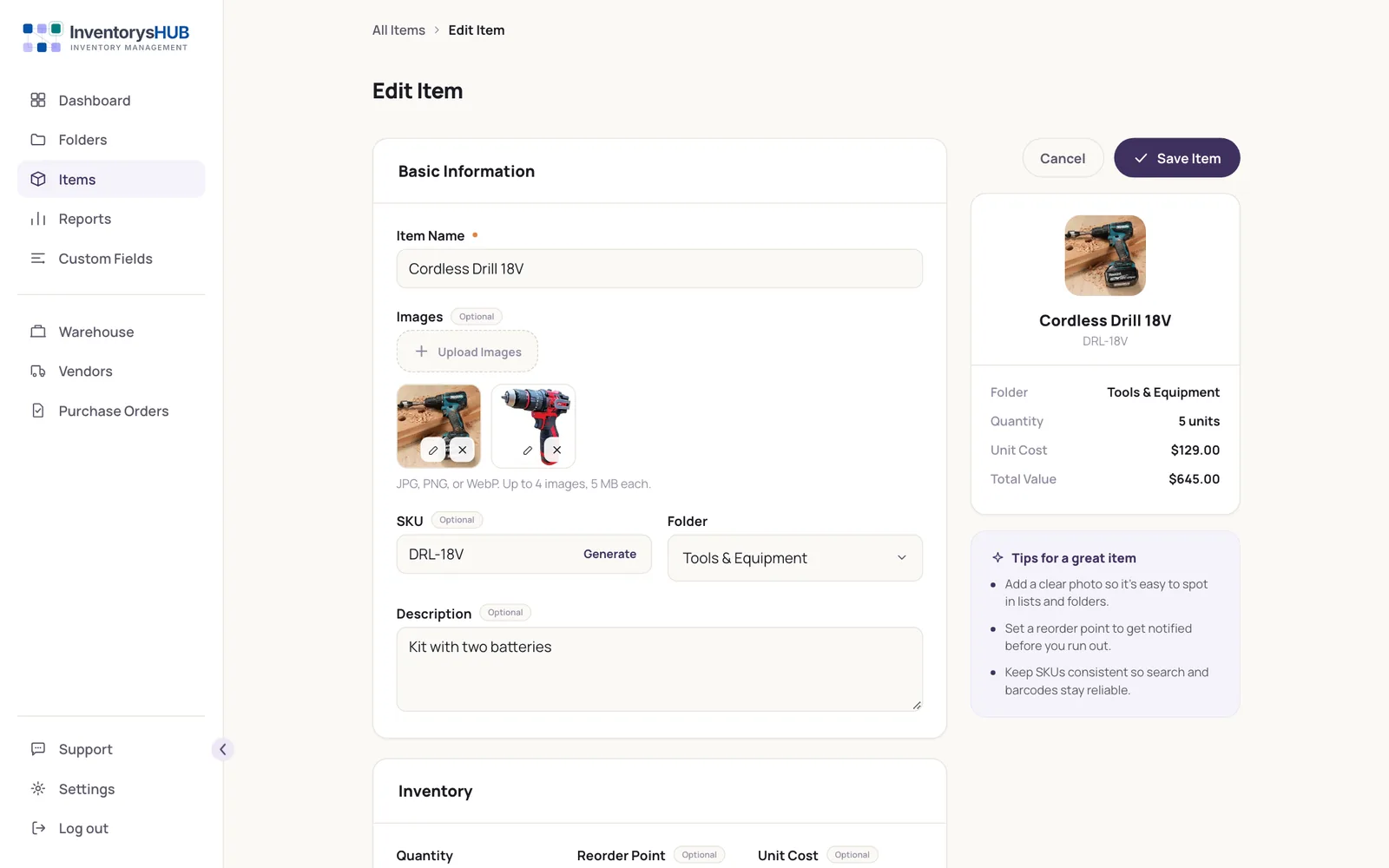
To add photos to a new item, click Items and then Add Item. For an existing item, open it, click the ⋮ menu and choose Edit Item.
-
Click Upload Images
In Images, click Upload Images and pick one or more files from your computer or phone. On a phone you can usually take a new picture with the camera right there.
Shoot items on a plain, light background in good light, and fill the frame, so details are easy to see in small list views.
-
Save the item
Click Save Item. The first photo becomes the main one shown in lists, folders and search, and the rest appear as small thumbnails on the item page.
-
Add or view photos from the item page
On the item page, click a thumbnail to view that photo in the large frame. Click the + tile next to the thumbnails to add another photo without opening the full form.
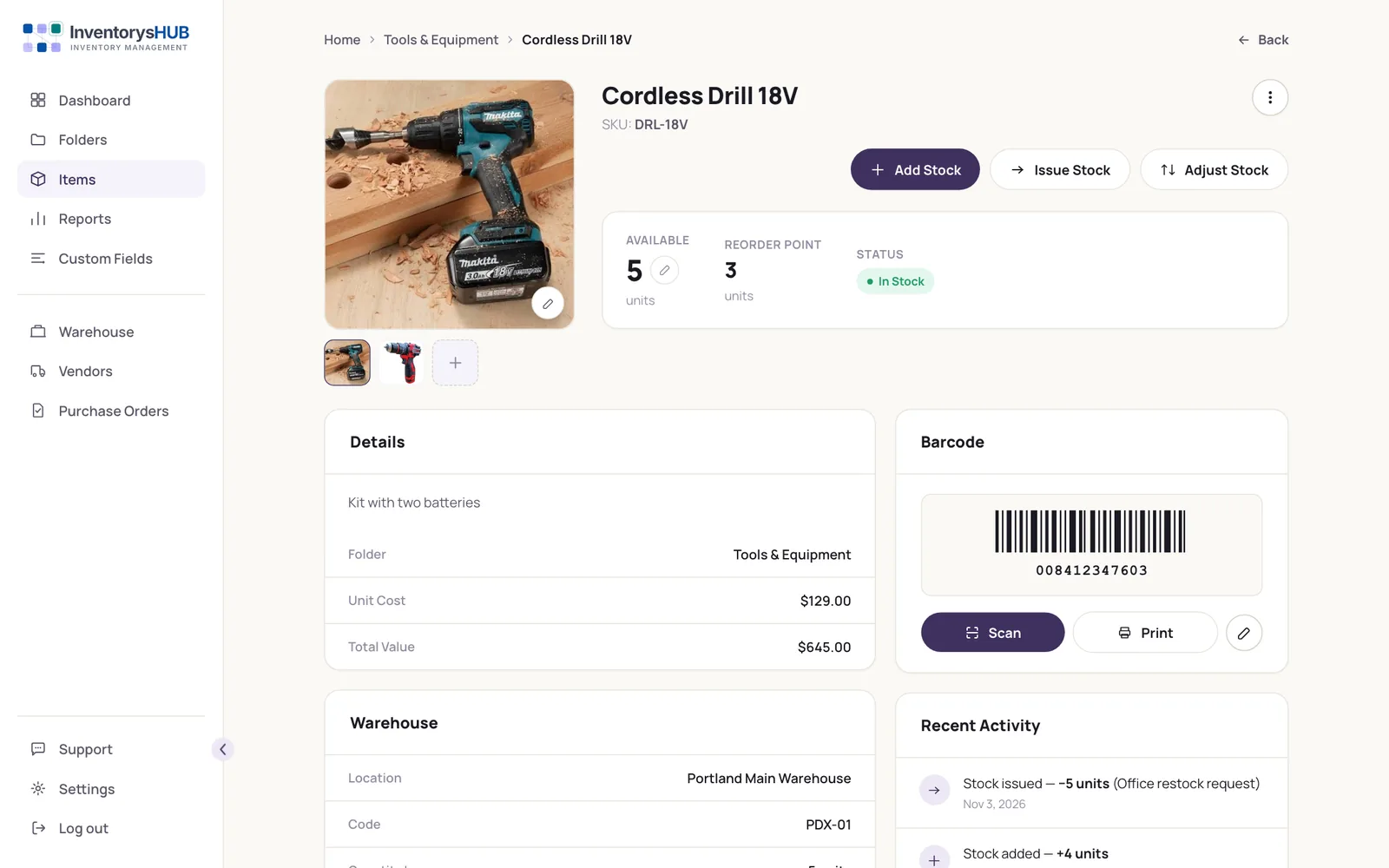
Photo rules at a glance
| File types | JPG, PNG or WebP |
|---|---|
| Size limit | 5 MB per photo |
| Photos per item | Up to 4 |
| Main photo | The first one, used in lists and search |
If a file is too large, shrink it with your phone’s editor or any free image tool and try again.
Why it pays to add item photos in InventorysHub
Photos cut down on picking errors, especially with items that have similar names, like two sizes of the same part. They also help new staff learn your stock quickly and make it easier to spot damage when you compare a returned item with the original. For equipment and tools you lend out, a photo is a simple record of what the item looked like. Read more about our asset management software.
Quick answers
How many photos can I add to one item?
Up to four per item. To add a new one when you are at the limit, edit the item and remove an old photo first.
Why did my photo fail to upload?
The file may be over 5 MB or in a type we do not support, such as HEIC. Save it as JPG and try again.
Can I add item photos in InventorysHub from my phone?
Yes. Open the app in your phone’s browser, edit the item and tap Upload Images to use your camera or gallery.