Before you start
- Sign in as the workspace owner or an Admin.
- Check your plan’s user limit: Free and Starter allow 2 users, Advanced allows 10 and Ultimate allows 50. The owner counts as one.
- Have each person’s name and work email ready.
How to invite users to InventorysHub
-
Open Teams
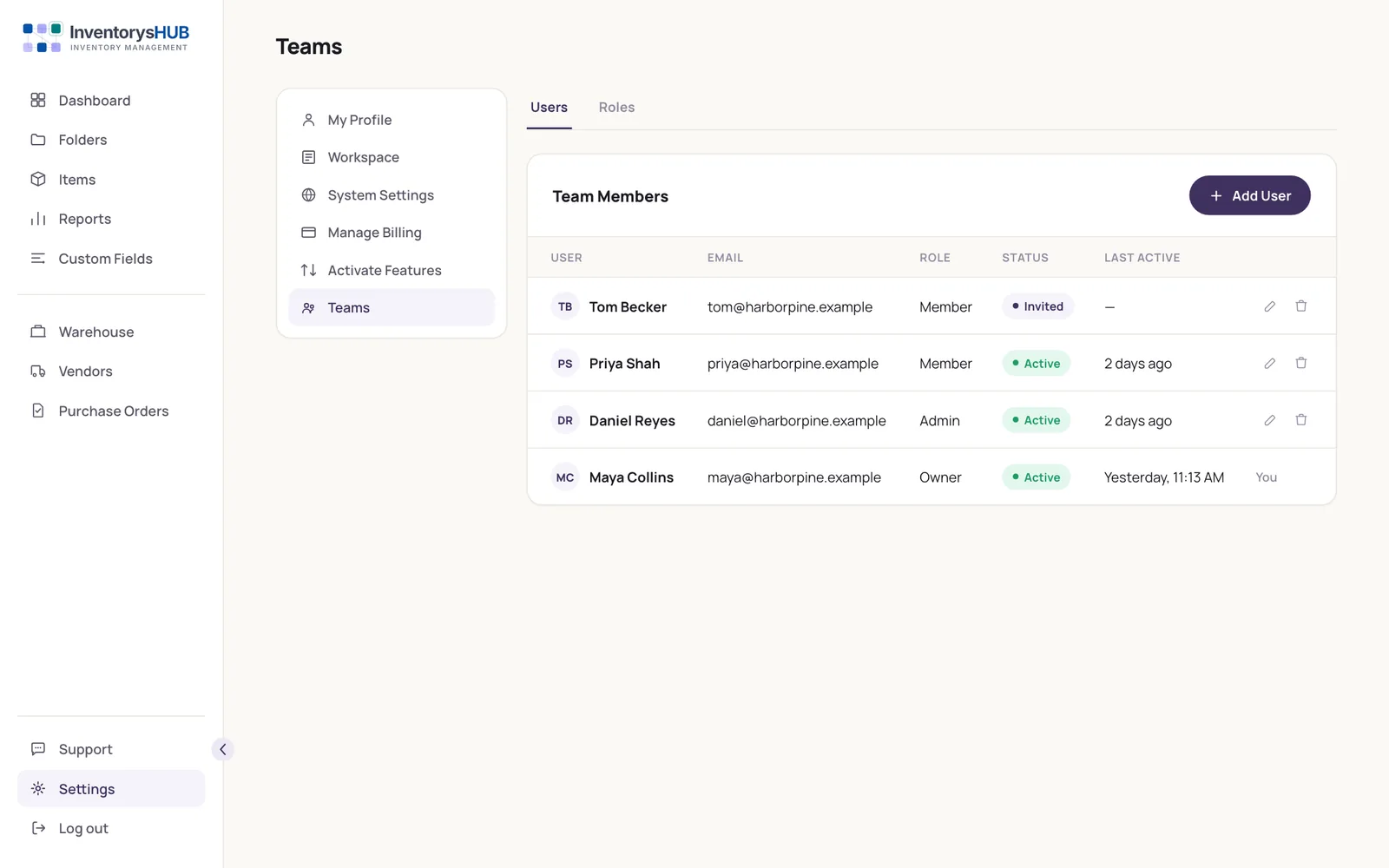
Click Settings in the left menu, then click Teams. The Users tab lists your Team Members with their email, role, status and when they were last active.
-
Click Add User
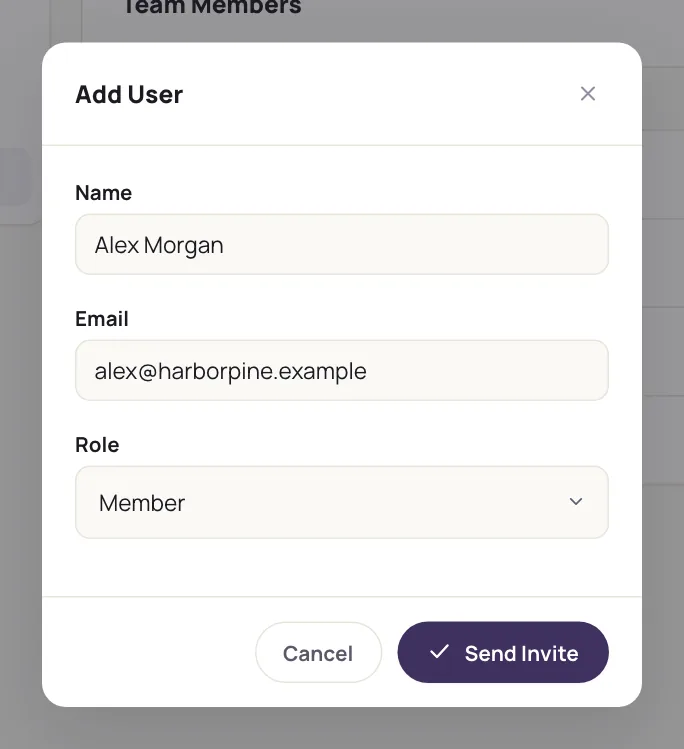
Click Add User. Type the person’s Name and Email, then pick a Role, such as Admin, Member or a custom role you created.
-
Send the invite
Click Send Invite. The person appears in the list with the status Invited. They get an email with a link: new users set their own password, while people who already have an account simply sign in. Once they join, their status changes to Active.
Ask new teammates to check their spam folder if the invite has not arrived within a few minutes.
Change a teammate’s role
On the Users tab, use the edit option on the person’s row, choose a new role and save. The change applies the next time they load a page. The owner’s role cannot be changed here. To learn what each role can do, read the guide to user roles.
Remove someone who leaves
Use the remove option on the person’s row and confirm with Yes, Remove. They lose access to this workspace straight away, but everything they did stays in the stock log, so your history is complete. Removing someone also frees a seat for a new teammate.
Tips when you invite users to InventorysHub
- Give each person their own login instead of sharing one, so that you always know exactly who changed what.
- Start new staff as Members, and give the Admin role only to people who manage settings or the team.
- Remove leavers on their last working day, which keeps your stock data safe and frees up a seat.
- Need more seats? Change your plan to raise the limit.
Growing teams often start with our small business inventory software and add seats as they hire.
Quick answers
Why can I not invite users to InventorysHub?
You may have reached your plan’s user limit, or your role may not allow it. Only the owner and Admins can manage the team.
The invite link expired. What now?
The person can use Forgot password? on the login page with the invited email to set a password, or you can remove and invite them again.
Can someone belong to two workspaces?
Yes. The same email can be invited to more than one workspace.