Before you start
- Add a few items with clear names and SKUs, because search looks at both.
How to search items in InventorysHub
-
Use the search bar at the top
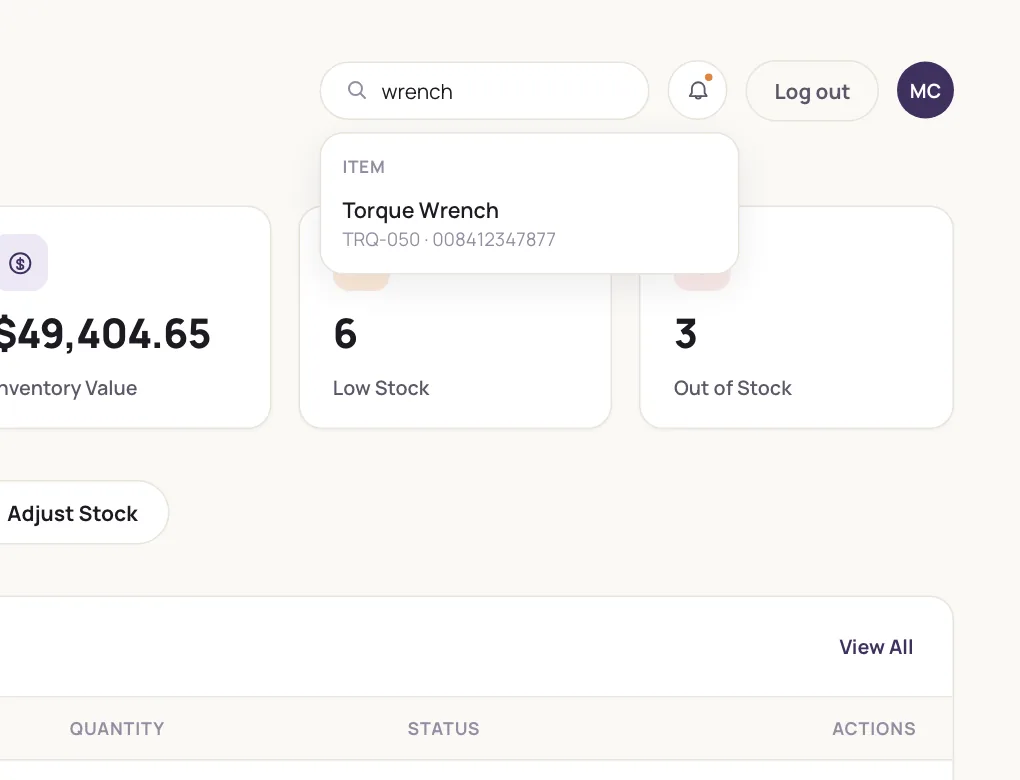
The Search inventory… box at the top right appears on every page of the app. Start typing part of a name, SKU or barcode, and the matching items appear in a short list right under the box, so you can click one to open it.
-
Search inside the Items list
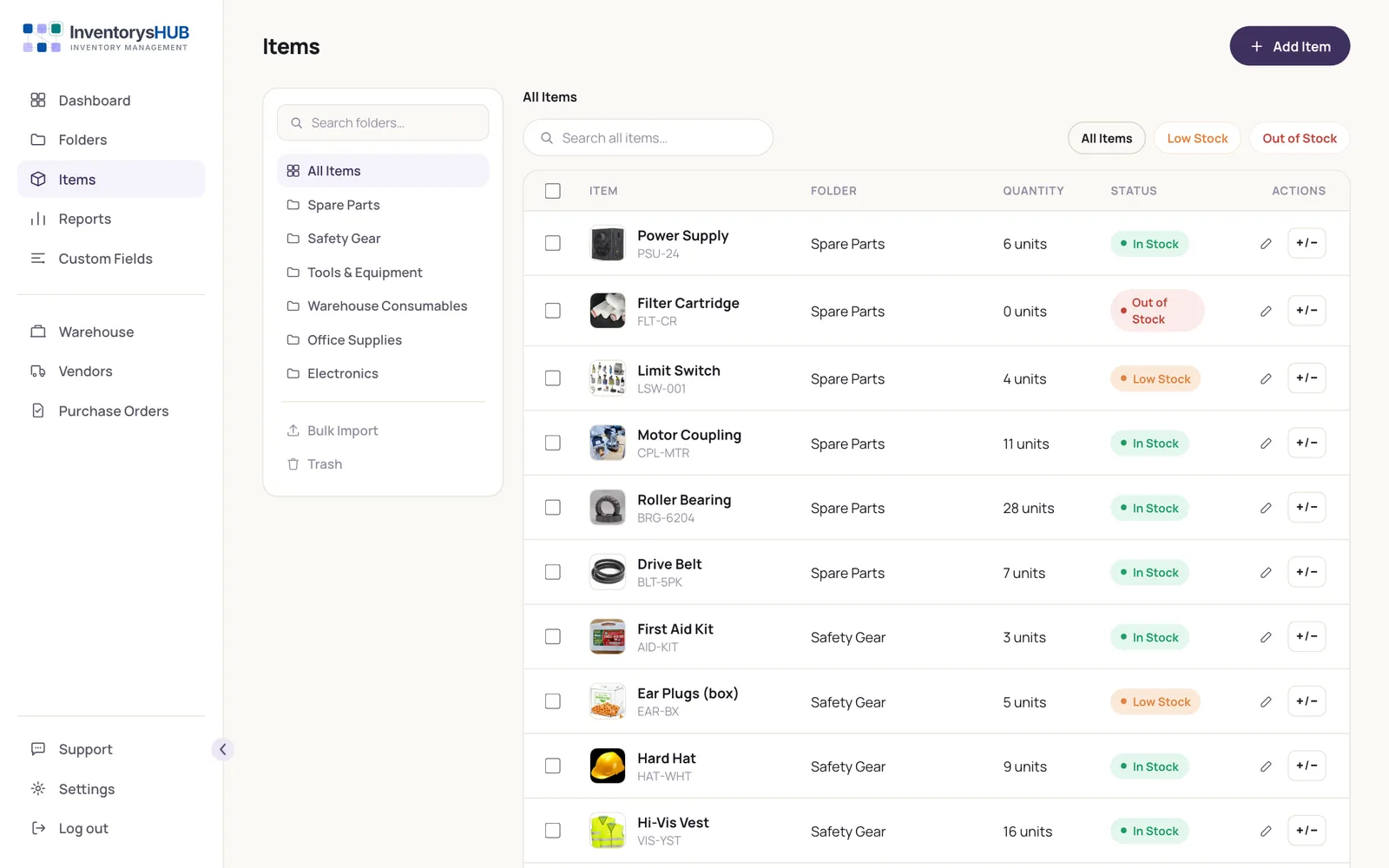
Click Items in the left menu and use Search all items… above the table. The table filters as you type, which is handy when you want to select several results for a bulk action.
-
Browse by folder
The panel on the left of the Items page lists your folders. Click a folder to see only its items, or click All Items to see everything. With many folders, type in Search folders… to find one fast.
-
Filter by stock status
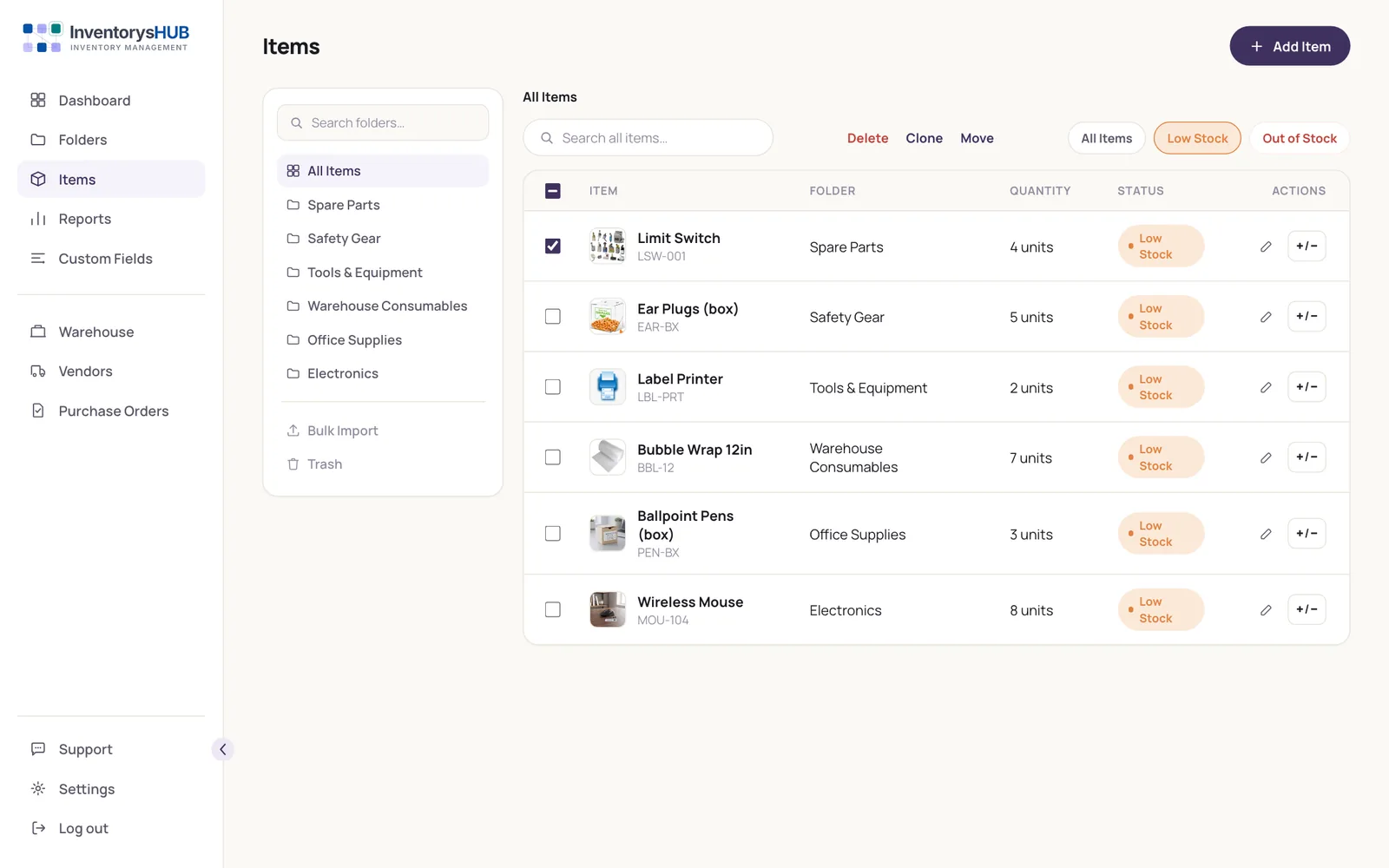
Click Low Stock to show only the items that are at or below their reorder point, or click Out of Stock to show the items that have zero units left. When you are done, click All Items to clear the filter and see your full list again.
Tips to search items in InventorysHub faster
- Search by SKU when you have it, since it is shorter and unique.
- Type just a few letters; you do not need the whole name.
- Use the same naming style for all items so similar ones show up together.
- Check the folder filter if a search looks empty, and switch back to All Items.
How search decides what to show
Search looks for your words inside each item’s name, SKU and barcode, and it does not care about capital letters. It only shows active items, so anything you have deleted stays out of the results until you restore it from Trash. Results also respect the folder you are viewing in the Items list, which is why switching to All Items often brings back an item that seemed to be missing.
Turn search into action
Once you find an item, you can change its count straight away with the + / − button, or open it to update stock with a reason. The Low Stock filter makes a quick shopping list when you are about to make a purchase order. Fast lookups like these are one of many inventory management tools built into the app.
Quick answers
Can I search items in InventorysHub by barcode?
Yes. Type the barcode number in the search box, and the matching item appears just like a name or SKU match.
Why does my search show nothing?
Check for typing errors, try fewer letters, and make sure you are on All Items rather than a single folder.
Can I search deleted items?
Deleted items do not show in search. Open Trash from the Items page to find them.