Before you start
- Sign in to your account, and the dashboard opens on its own, ready for you to follow this InventorysHub dashboard guide.
- Add a few items first, so the cards and lists have some real numbers to show.
Read the dashboard, part by part
-
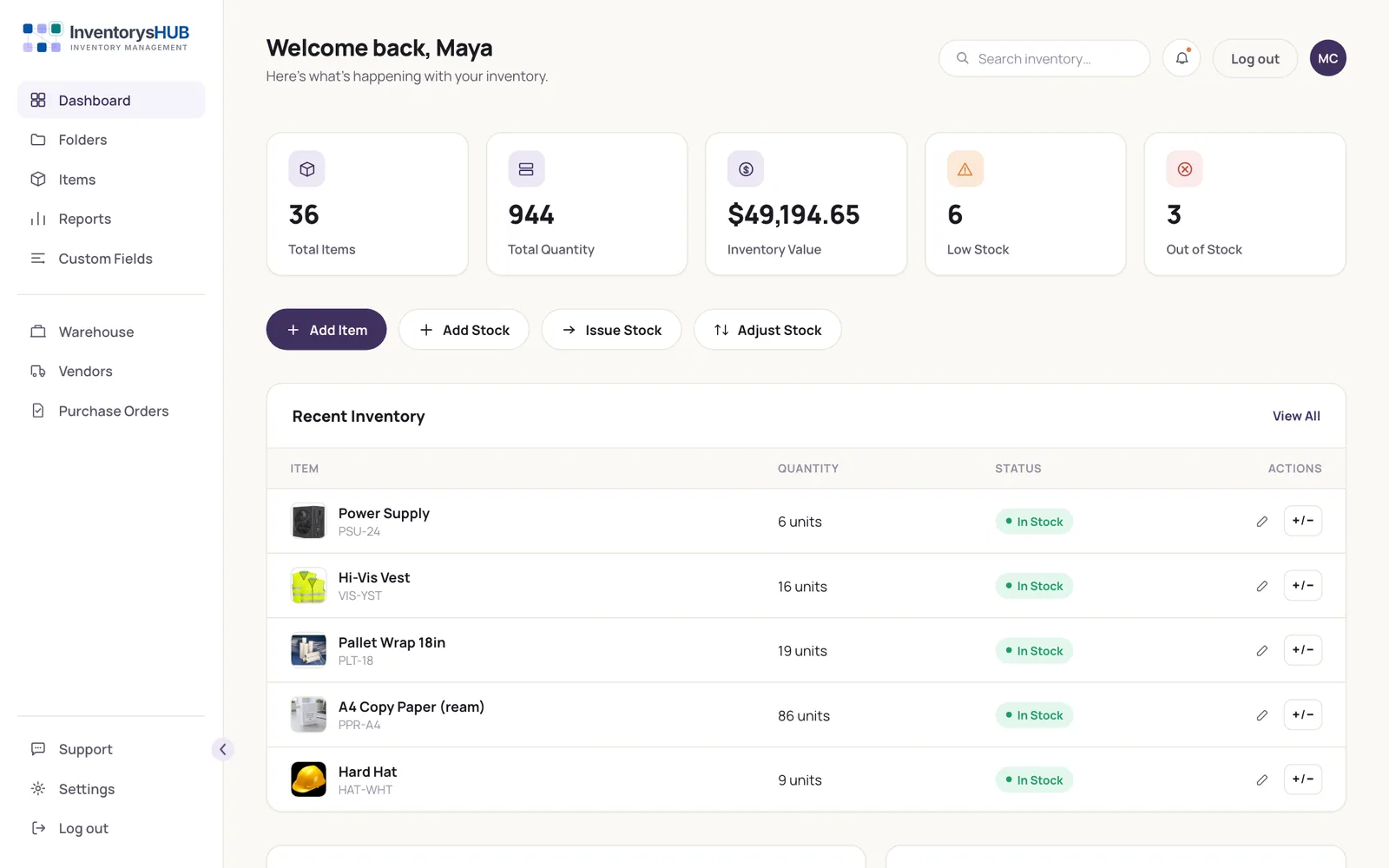
Check the five summary cards
The row of cards at the top gives you the big picture of your stock:
- Total Items shows how many different items you have.
- Total Quantity adds up every unit across all items.
- Inventory Value multiplies quantity by unit cost for each item and adds it all together.
- Low Stock counts items that are at or below their reorder point.
- Out of Stock counts items that have zero units left.
-
Use the quick action buttons
Under the cards you will find four buttons. Add Item opens the new item form, while Add Stock, Issue Stock and Adjust Stock let you pick any item and change its count without leaving the dashboard.
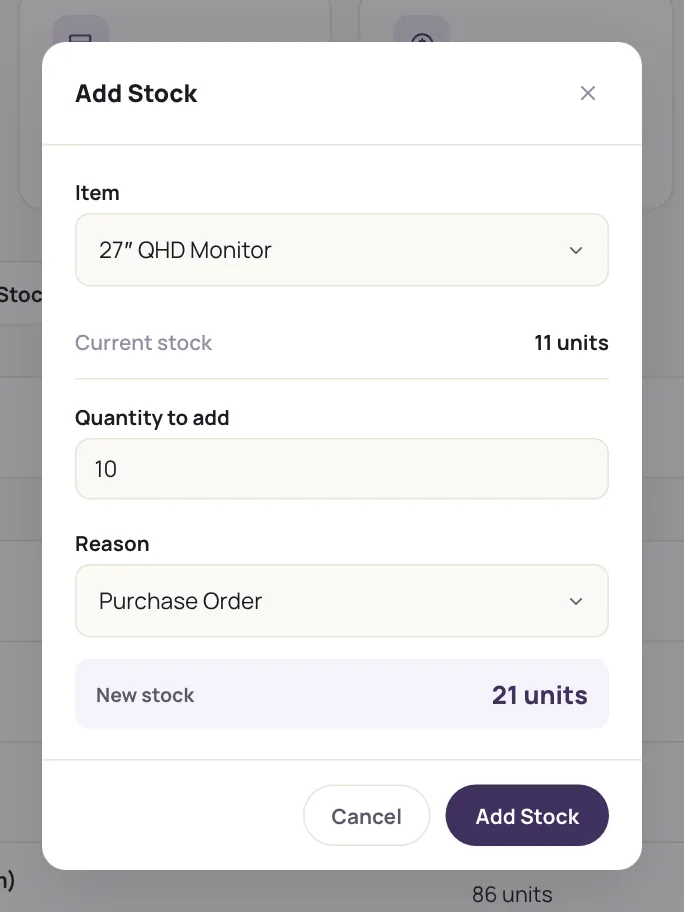
Each quick action asks for a reason. That reason appears later in the stock log, so choose the one that really fits what happened.
-
Scan the Recent Inventory list
Recent Inventory lists the items that changed most recently, with their quantity and status. Click the pencil to edit an item, or click + / − to change its count quickly. Click View All to open the full list of items.
-
Watch Low Stock and Recent Activity
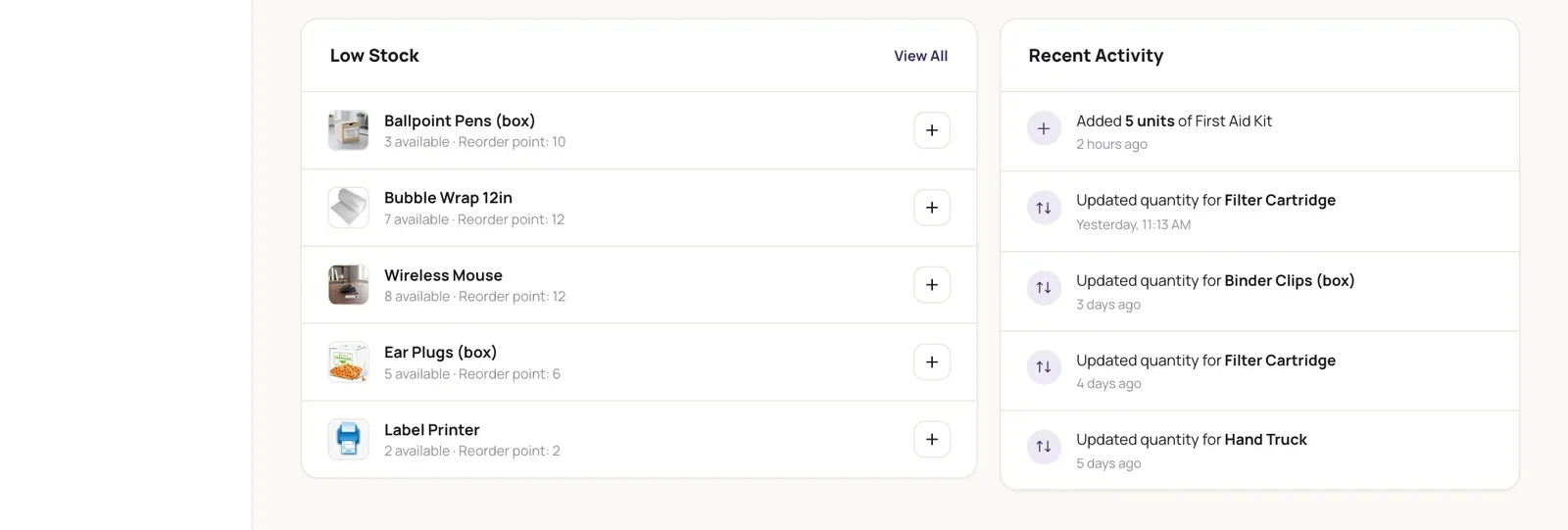
Further down the page, Low Stock shows the items you should reorder soon. Next to it, Recent Activity shows the latest stock changes, with the amount, the reason and the date of each one.
Get around the app from the dashboard
The menu on the left takes you to every part of the app: Folders, Items, Reports, Custom Fields, Warehouse, Vendors and Purchase Orders. Support and Settings sit at the bottom of the menu. Click the small arrow beside the menu to fold it away and give the page more room.
At the top right you will find the search box, the bell for low stock notifications and your profile picture.
Why this InventorysHub dashboard guide matters
The dashboard turns your stock into numbers you can act on straight away. If Low Stock goes up, it is probably time to place an order. If Inventory Value looks wrong, check the unit costs on your items. This live view is the heart of our real-time inventory tracking, and you can browse our inventory management tools to see every feature behind it.
Quick answers
Why is my Inventory Value showing zero?
The value is based on each item’s unit cost. If your items have no unit cost yet, the total stays at zero, so edit the items and add a cost.
Does the dashboard update on its own?
Yes. Each time stock changes, the cards and lists show the new numbers the next time the page loads.
Can new users change what the dashboard shows?
The layout is the same for everyone, but the numbers always reflect your own workspace and the folders and items in it.