Before you start
- Turn on Vendors in Settings, under Activate Features.
- Have each supplier’s name, main contact, email and phone number ready.
How to add vendors in InventorysHub
-
Open the Vendors page
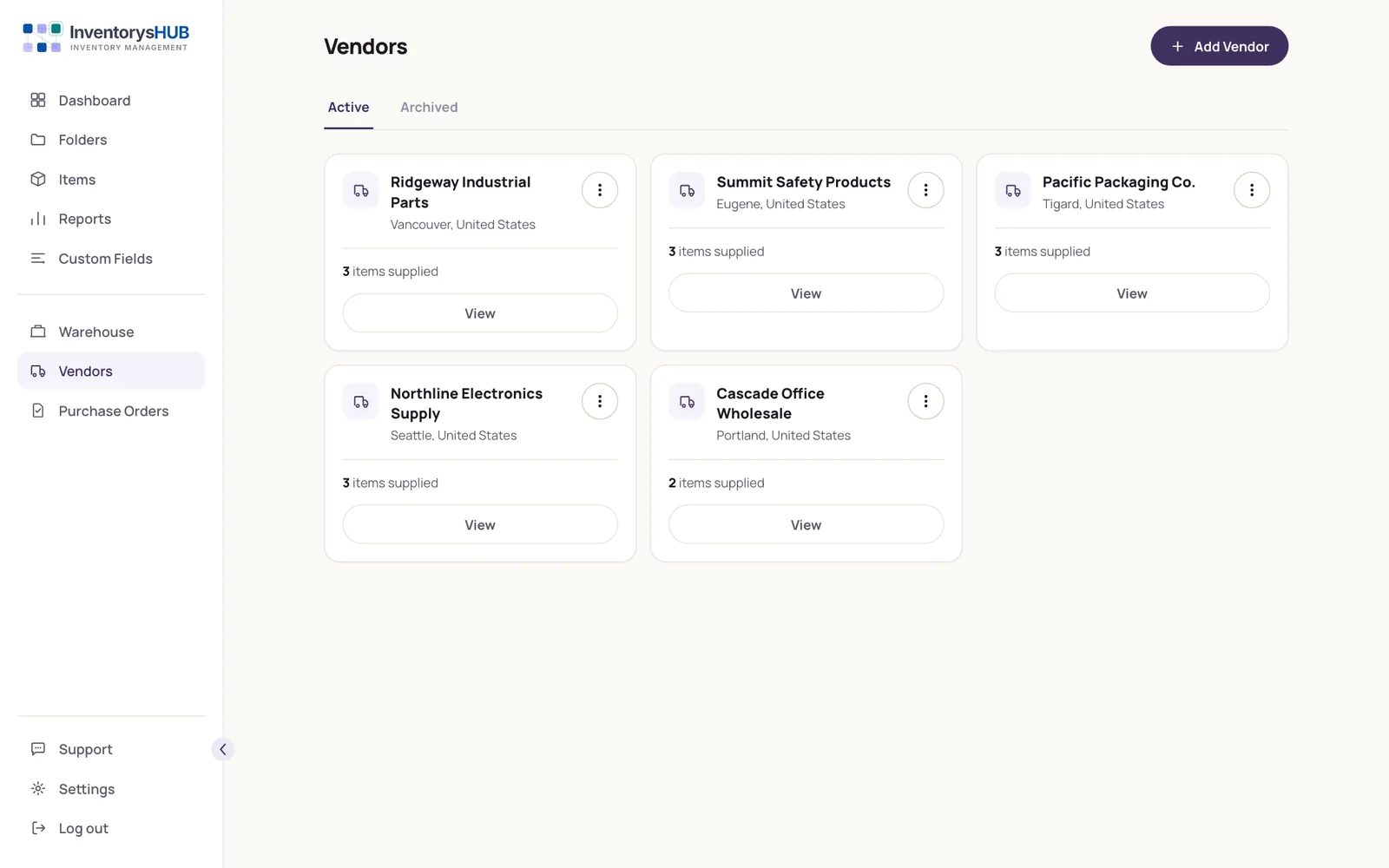
Click Vendors in the left menu. Each supplier appears as a card on the Active tab, showing the city and how many items they supply.
-
Click Add Vendor
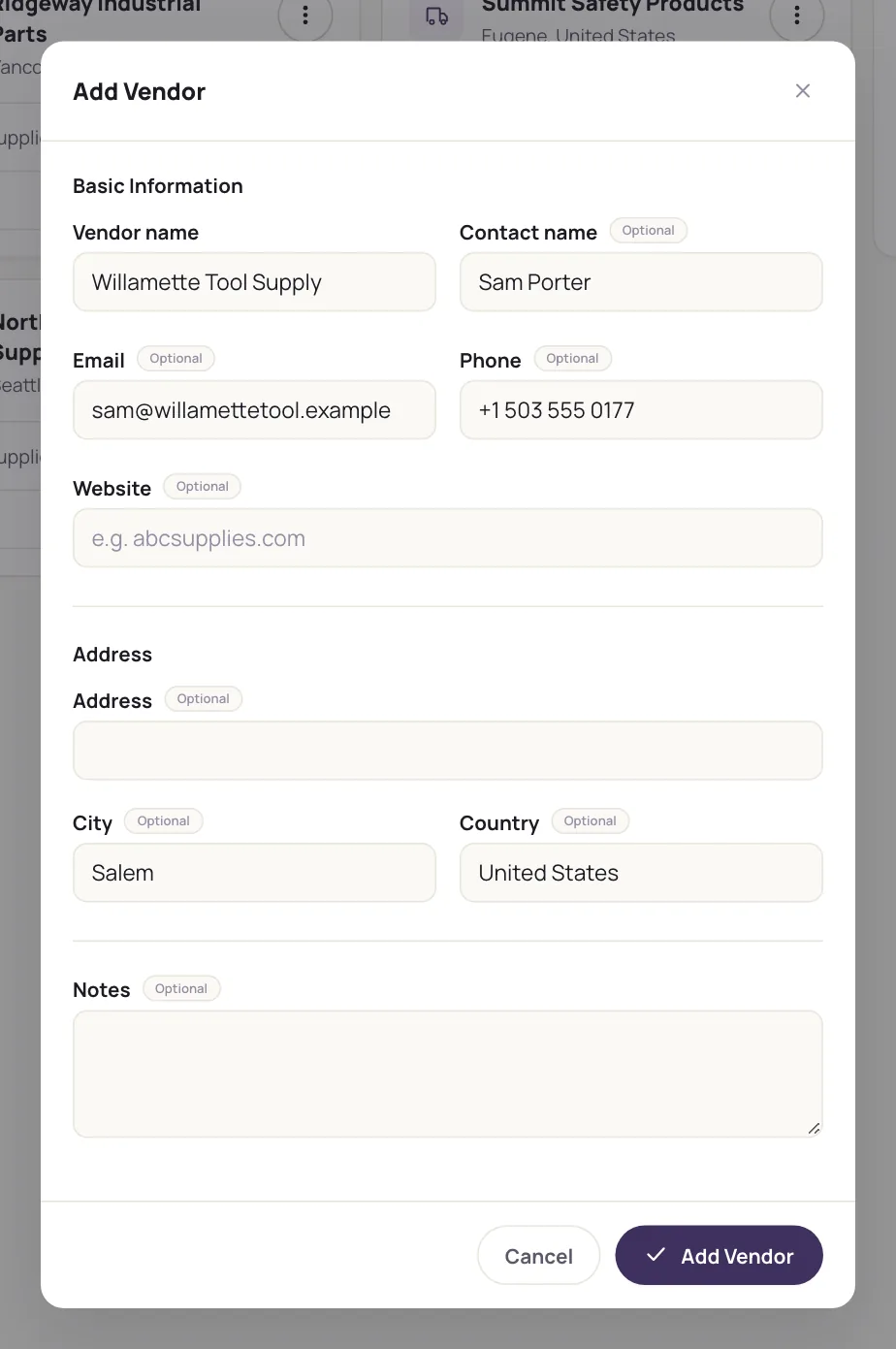
Click Add Vendor at the top right. Fill in Vendor name, which is required, and as much of the rest as you have: Contact name, Email, Phone, Website, Address, City and Country.
-
Add useful notes and save
Use Notes for anything your team should remember, such as payment terms, delivery days or a minimum order. Then click Add Vendor to save the supplier.
Notes like “Net 30, delivers Tuesday and Friday” save a phone call every time someone places an order.
View or edit a vendor
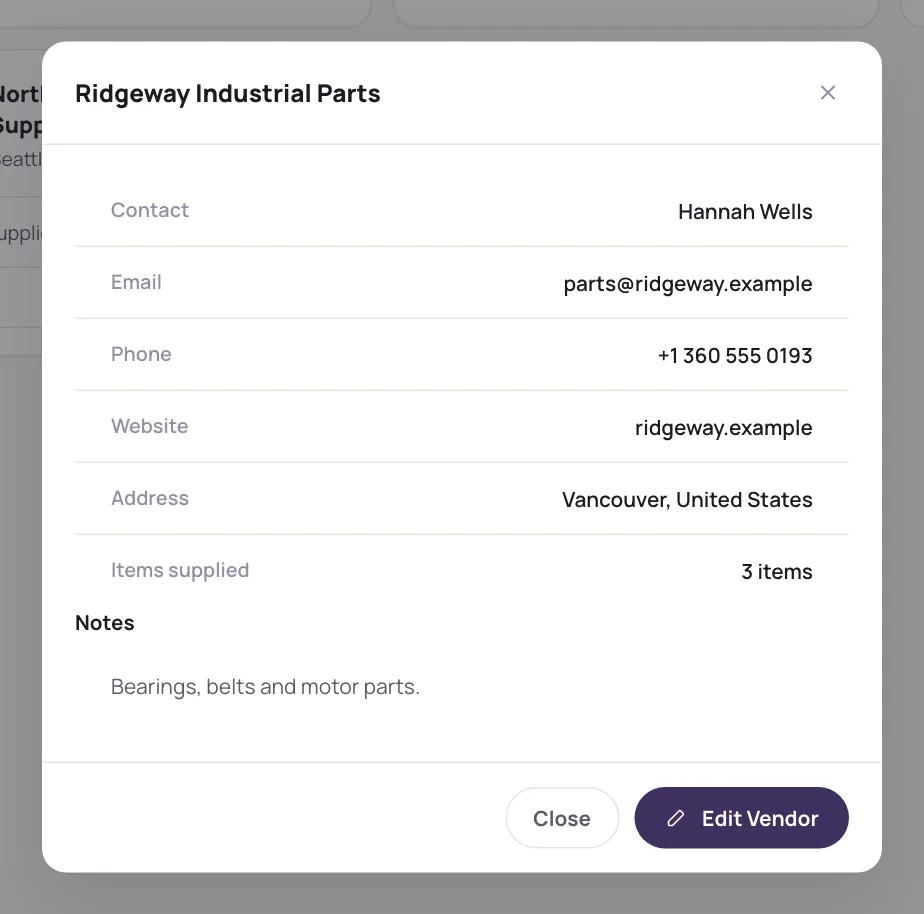
Click View on a vendor card to see all of their details in one window, including how many of your items they supply. Click Edit Vendor in that window, or Edit in the card’s ⋮ menu, to change anything.
Archive a vendor you no longer use
Choose Archive from the card’s ⋮ menu and confirm with Yes, Archive. The vendor moves to the Archived tab, and past purchase orders keep their vendor name. Click Unarchive if you start buying from them again.
Keep vendor records useful
- Use the supplier’s trading name, so it matches their invoices and emails.
- Add a named contact rather than a general inbox when you can, because a real person answers faster.
- Update the notes when terms change, such as a new minimum order or a holiday closure.
- Archive old suppliers instead of leaving them active, so the list stays short when people choose a vendor on an order.
Use vendors on purchase orders
After you add vendors in InventorysHub, you can pick them when you make a purchase order, which keeps every order tied to the right supplier. Choosing a vendor on an order is part of the Advanced and Ultimate plans. Good supplier records are the start of strong partnerships, as our post on supplier relationship management explains.
Quick answers
Is there a limit to how many vendors I can add in InventorysHub?
No. Every plan lets you add as many vendors as you need.
Can I delete a vendor?
Vendors are archived rather than deleted, so your order history always shows who you bought from.
Why do I not see Vendors in the menu?
Turn on the Vendors feature under Activate Features in Settings, and the menu item appears.