Before you start
- Sign in as the workspace owner.
- Have your new card ready if you are replacing an expired or lost one.
How to update your card
-
Open Manage Billing
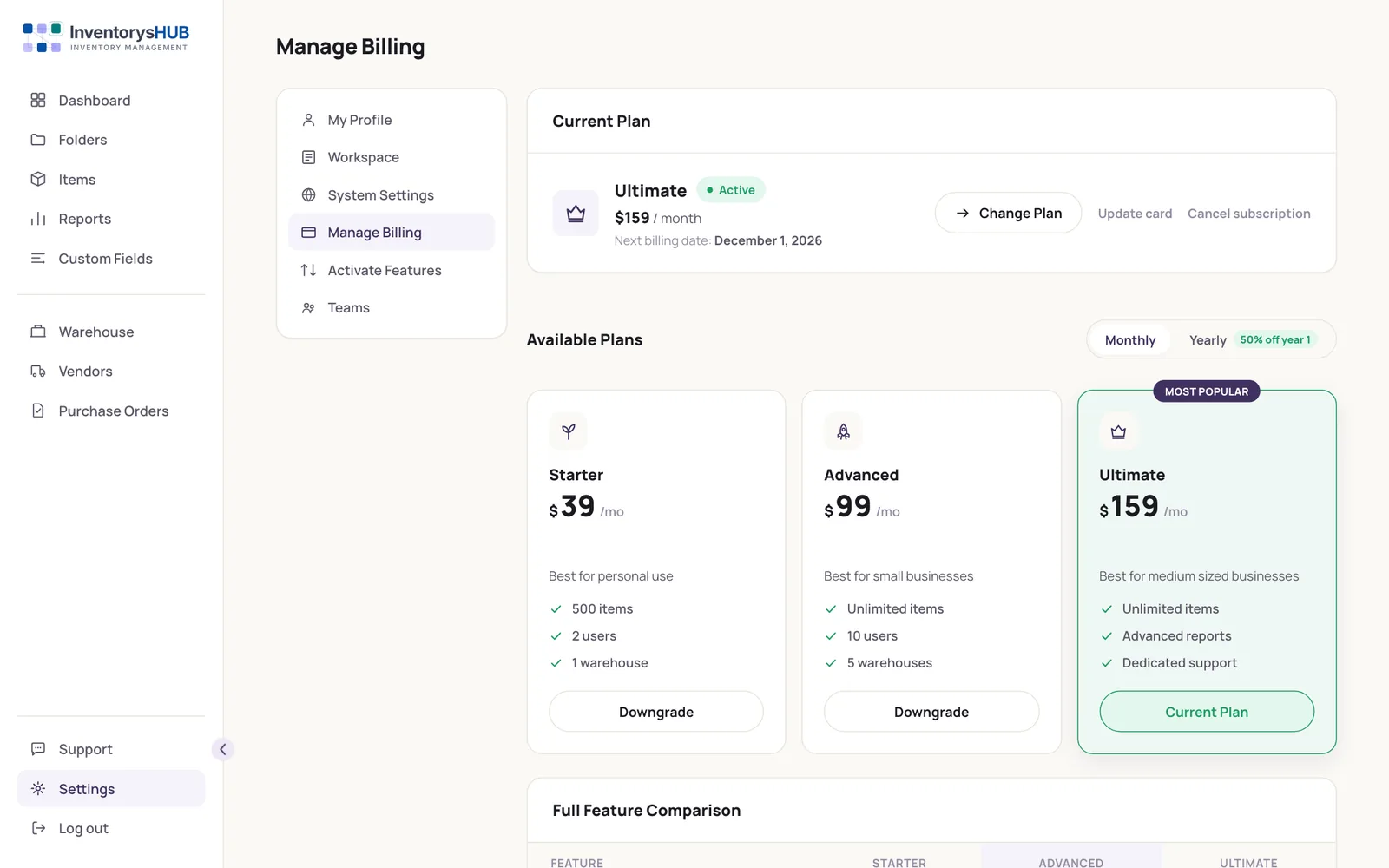
Click Settings, then Manage Billing. The Current Plan card shows your plan, price and renewal date, with an Update card button.
-
Enter the new card
Click Update card. A secure window opens. Enter the new card number, expiry date and CVC, check your billing name and address, and confirm. The new card is used for your next renewal.
Update your card before the old one expires, so your renewal goes through and the team never loses access.
How to download InventorysHub invoices
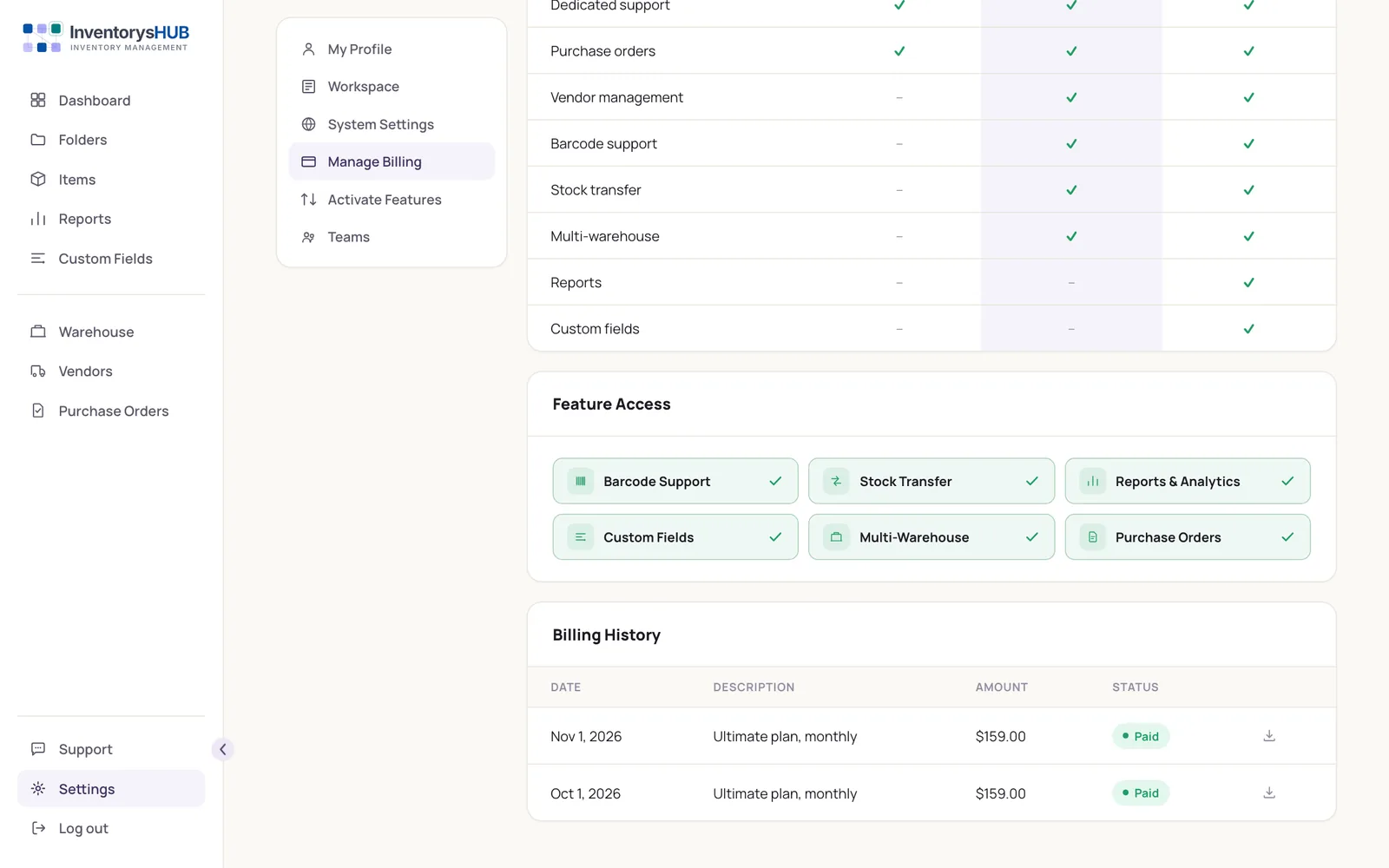
- On Manage Billing, scroll down to Billing History. Each payment is listed with its Date, Description, Amount and Status.
- Click the download icon at the end of a row. The invoice opens in a new tab.
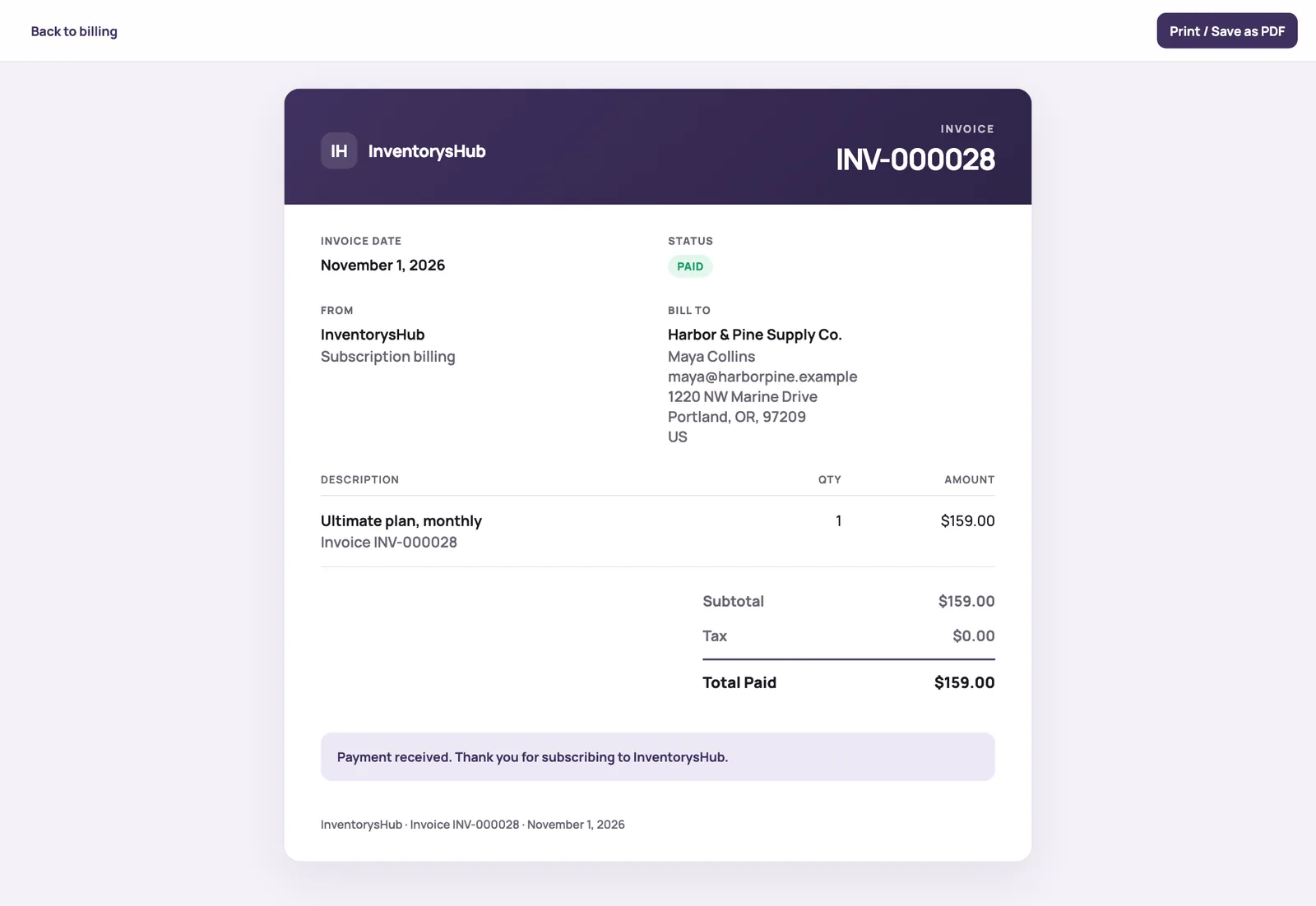
- Click Print / Save as PDF at the top of the invoice, then choose “Save as PDF” in your browser’s print window to keep a copy.
What is on each invoice
Each of your InventorysHub invoices shows the invoice number and date, who billed and who was billed, the plan and billing period, the amount, any tax and the total, and whether it has been paid. It is ready to file with your bookkeeping or send to your accountant.
If a payment fails
A payment can fail when a card expires, is blocked or has too little credit. Update your card as shown above, and the next attempt will use the new card. If you keep seeing problems, check with your bank, then contact our support team.
Keep billing simple
- Use a company card rather than a personal one, so billing does not stop when someone leaves.
- Download InventorysHub invoices each month and store them in one folder.
- Compare plans on our InventorysHub pricing page once a year, in case another plan suits you better.
Quick answers
Who can see InventorysHub invoices?
Billing is managed by the workspace owner, who can view and download every invoice.
Can I change the name or address on invoices?
Update your billing details when you update your card, and new invoices will show them.
Do you store my card number?
No. Card details are handled by Stripe, a leading payment company, and are never stored by InventorysHub.
How often am I billed?
You are billed once a month or once a year, depending on the billing period you chose, and each payment adds a new line to Billing History.