Before you start
- Sign in to your workspace. Everyone on the team can add, issue and adjust stock.
- Know how many units changed and why, because each action asks for a short reason.
How to update stock in InventorysHub
You can use these actions from an item’s page, or from the dashboard, where you first pick the item from a list.
-
Add Stock when units come in
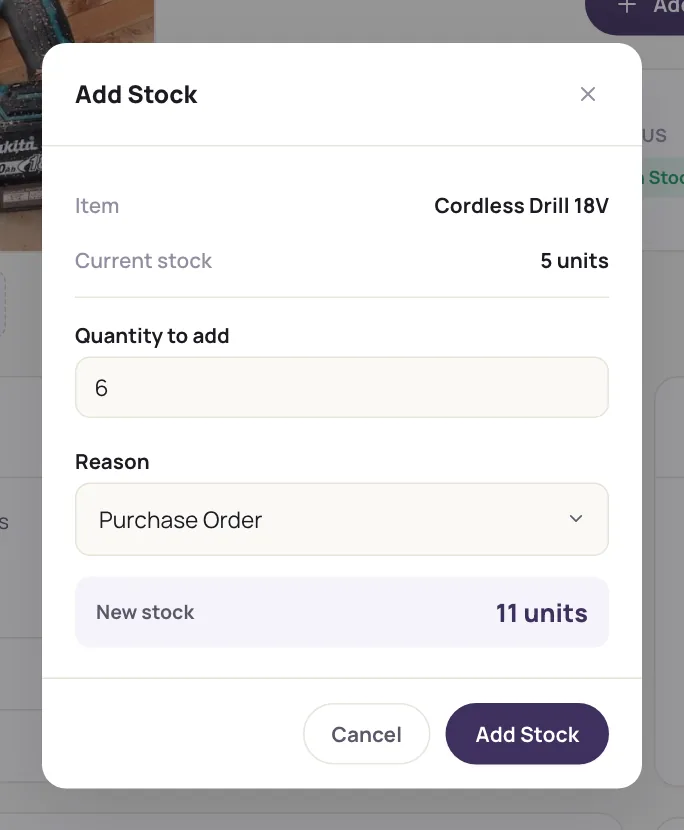
Open the item and click Add Stock. Type the Quantity to add and choose a Reason, such as Purchase Order, Customer Return, Stock Transfer, Production, Initial Stock or Other. The window shows the New stock total before you click Add Stock to confirm.
-
Issue Stock when units go out
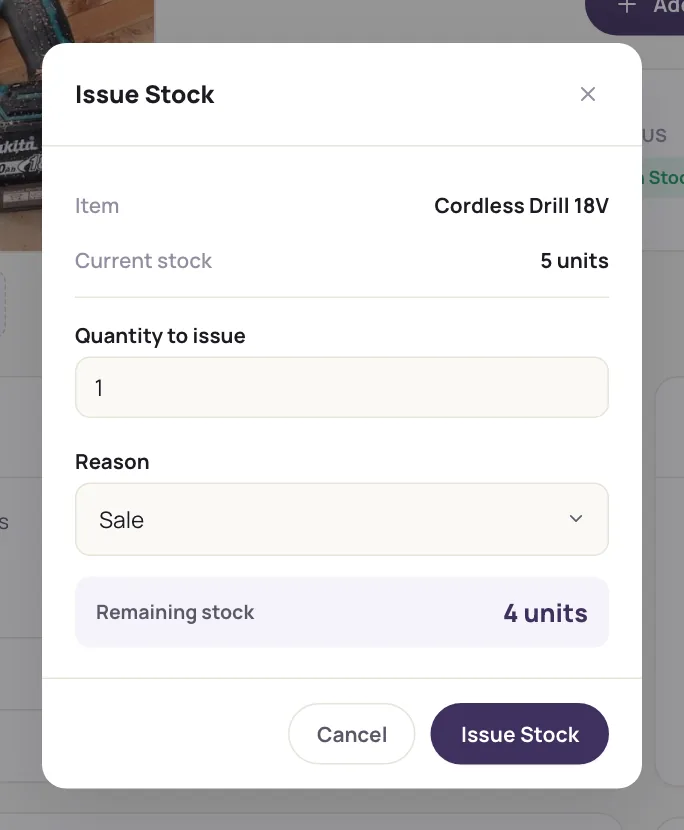
Click Issue Stock, type the Quantity to issue and pick a reason: Sale, Internal Use, Damaged, Lost, Sample, Consumption or Other. The window shows the Remaining stock. You cannot issue more units than you have, which keeps counts from going below zero.
-
Adjust Stock after a count
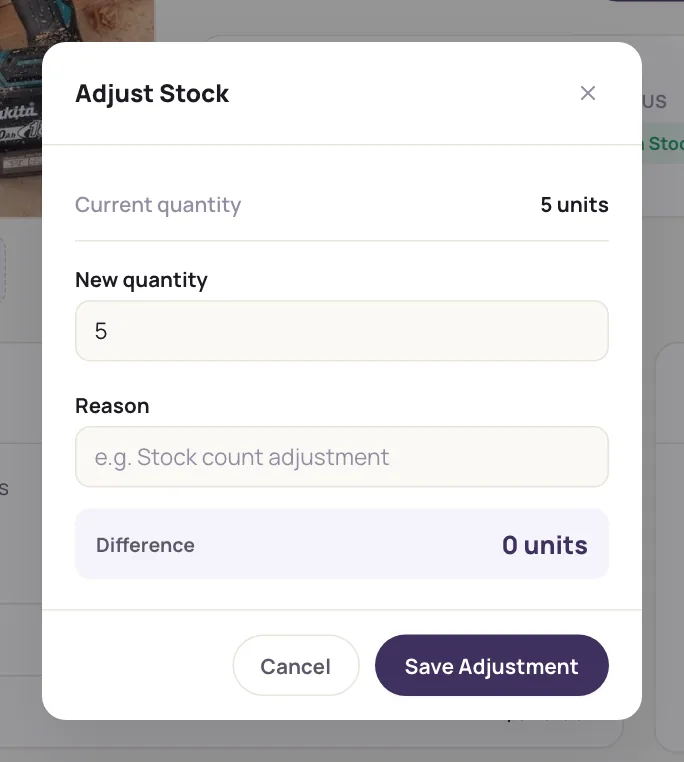
When a shelf count does not match the app, click Adjust Stock. Type the real number in New quantity and add a reason, like “Monthly count”. The window shows the Difference, and Save Adjustment sets the new total in one step.
Counting shelves on a regular cycle catches errors early. Our guide to cycle counting explains a simple routine.
-
Use the quick plus and minus control
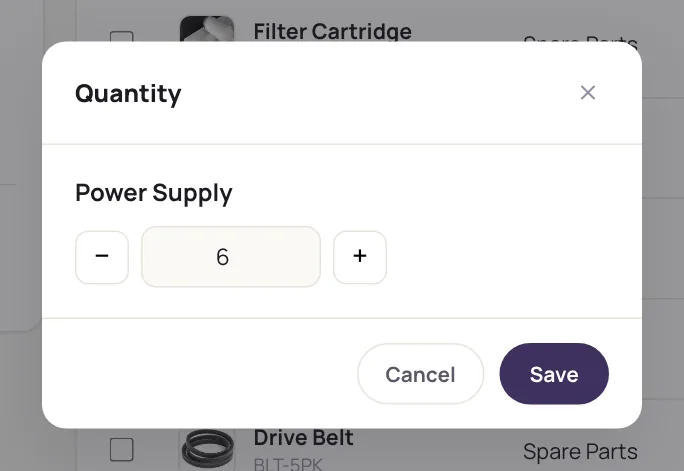
In the Items list and on the dashboard, each row has a + / − button. Click it, use the minus and plus keys or type a number, and click Save. The app records this as an adjustment, so it still appears in the log.
Which action should I use?
| What happened | Action | Good reason |
|---|---|---|
| A delivery arrived | Add Stock | Purchase Order |
| A customer sent an item back | Add Stock | Customer Return |
| You sold or shipped units | Issue Stock | Sale |
| Staff used supplies | Issue Stock | Internal Use or Consumption |
| Something broke or went missing | Issue Stock | Damaged or Lost |
| A count found a different number | Adjust Stock | Your count note |
Picking the right action matters, because reports group changes by type. A clean history tells you exactly why numbers moved.
What happens after you update stock in InventorysHub
The new quantity shows everywhere at once, from the item page to the dashboard. If the count falls to the reorder point, the item turns Low Stock and you get a low stock notification. Every change is saved in the stock log with the reason and date. This is the daily work our stock management software is designed to make quick.
Quick answers
Can I undo a stock change?
There is no undo button, but you can reverse a mistake with the opposite action, such as issuing the units you added by accident, and note why.
Why can I not issue stock?
You cannot issue more units than the item has. Check the current count, or adjust it first if the number in the app is too low.
Do purchase orders update stock in InventorysHub on their own?
Yes. When you receive a purchase order, the app adds the units for you. See how to receive a purchase order.